If DuckStation is stuttering, the first thing I would not do is reset every setting and start flipping switches at random. Stutter can come from host performance, frame pacing, audio buffering, disc-image access, or even slowdown that existed on the original PlayStation.
The trick is figuring out which kind you have. DuckStation already gives you the two best clues: Emulation Speed and the Frame Time graph. Once you know whether the emulator itself is falling below full speed or simply presenting frames unevenly, the problem gets much smaller.
Quick answer: Turn on Show Emulation Speed and Show Frame Times under On-Screen Display. If speed falls below 100%, reduce graphics enhancements and other expensive features. If speed stays around 100% but motion hitches, look at frame pacing and sync. If the hitch lines up with audio crackle, increase the audio buffer or try SDL. If it happens when CD audio or data starts, test Preload Image to RAM. If DuckStation stays at 100% but the game itself slows down, you may be seeing original PS1 slowdown rather than an emulator problem.
Last checked: August 22, 2026. I rechecked the current DuckStation source for frame pacing, VSync, Sync to Host Refresh Rate, audio backends and buffering, frame-time OSD behavior, Preload Image to RAM, rewind/runahead requirements, and CPU clock-speed control.
First: Find Out What Kind of Stutter You Have
Open Settings → On-Screen Display and turn on Show Emulation Speed and Show Frame Times. I also like Show FPS while diagnosing, but do not treat the FPS number by itself as a health meter.
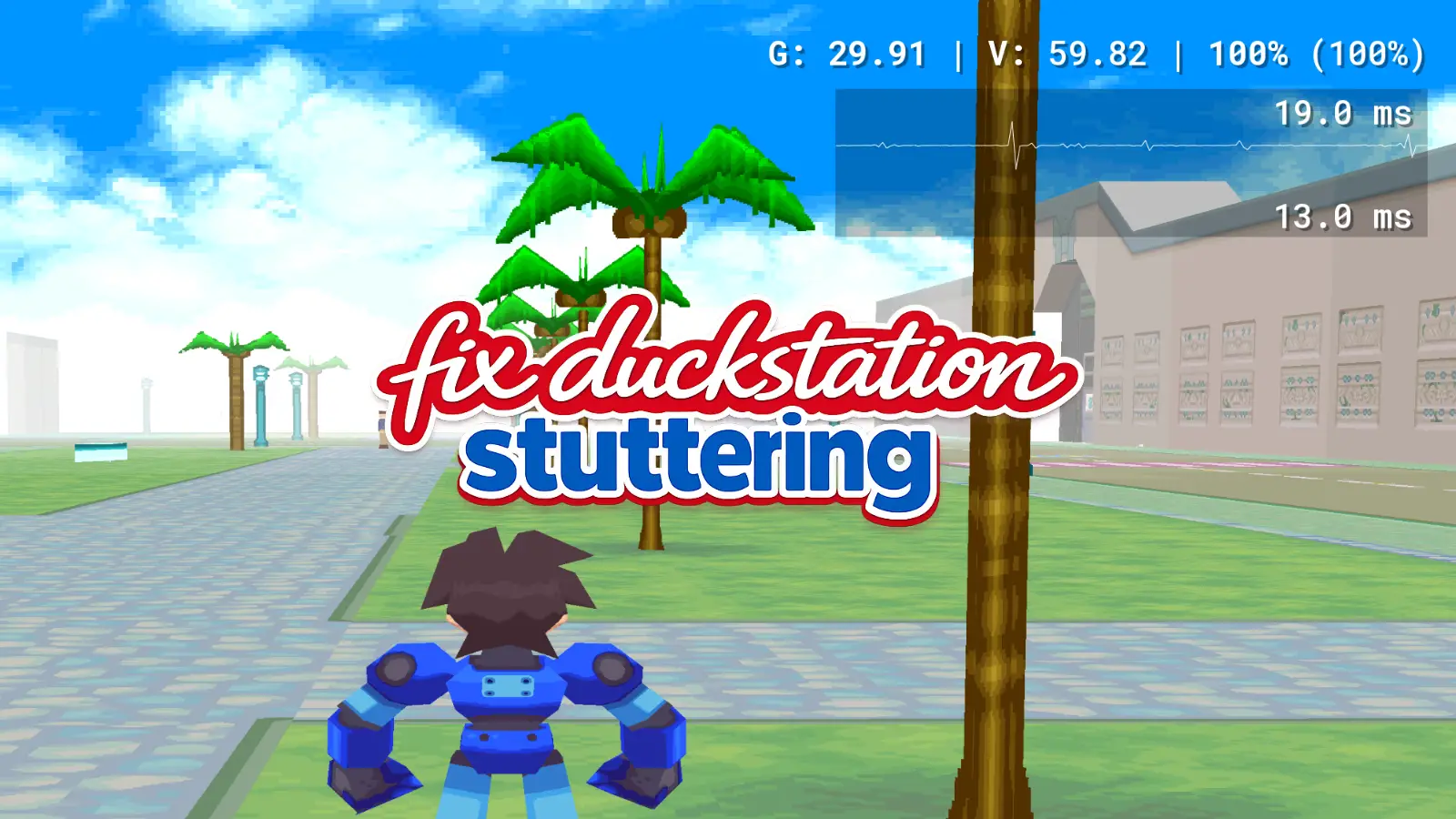
Current DuckStation displays FPS/VPS information, emulation speed, and an optional frame-time history graph. The frame-time graph is useful for seeing uneven presentation, while Emulation Speed tells you whether the emulator is actually keeping up with the console’s intended speed.
| What You See | Most Useful Next Step |
|---|---|
| Emulation Speed below 100% | Reduce expensive settings/features |
| Speed around 100%, but regular visual hitching | Check frame pacing, VSync and refresh sync |
| Audio crackle plus small hitches | Increase audio buffering / test SDL |
| Hitch when CD audio, FMV or data begins | Test Preload Image to RAM |
| Speed stays at 100%, but the game itself slows down | Check for original PS1 slowdown |
One important correction from the old version of this guide: a PS1 game showing 30 FPS is not automatically running badly. Many games intentionally render at 30 FPS or lower. If Emulation Speed is around 100%, DuckStation can be running correctly even when the game’s own FPS is nowhere near 60.
If you want the broader graphics setup once the stutter is fixed, my best DuckStation settings guide covers the normal baseline.
Fix 1: Frame Pacing, VSync, and Refresh-Rate Mismatch
Menu: Settings → Emulation
If Emulation Speed stays around 100% but movement has a small repeating hitch, frame pacing is a better suspect than raw performance.
DuckStation currently has three related controls:
- Optimal Frame Pacing: aims to display every console frame at a consistent rate. It is now enabled by default on most desktop builds. DuckStation specifically recommends it for G-Sync/FreeSync displays.
- VSync: synchronizes presentation to the host display and can produce smoother animation, but may add input lag.
- Sync to Host Refresh Rate: slightly adjusts emulation speed so the console refresh rate matches the host when VSync is enabled. DuckStation says the speed adjustment is less than 1% and that VRR users should leave this option off.
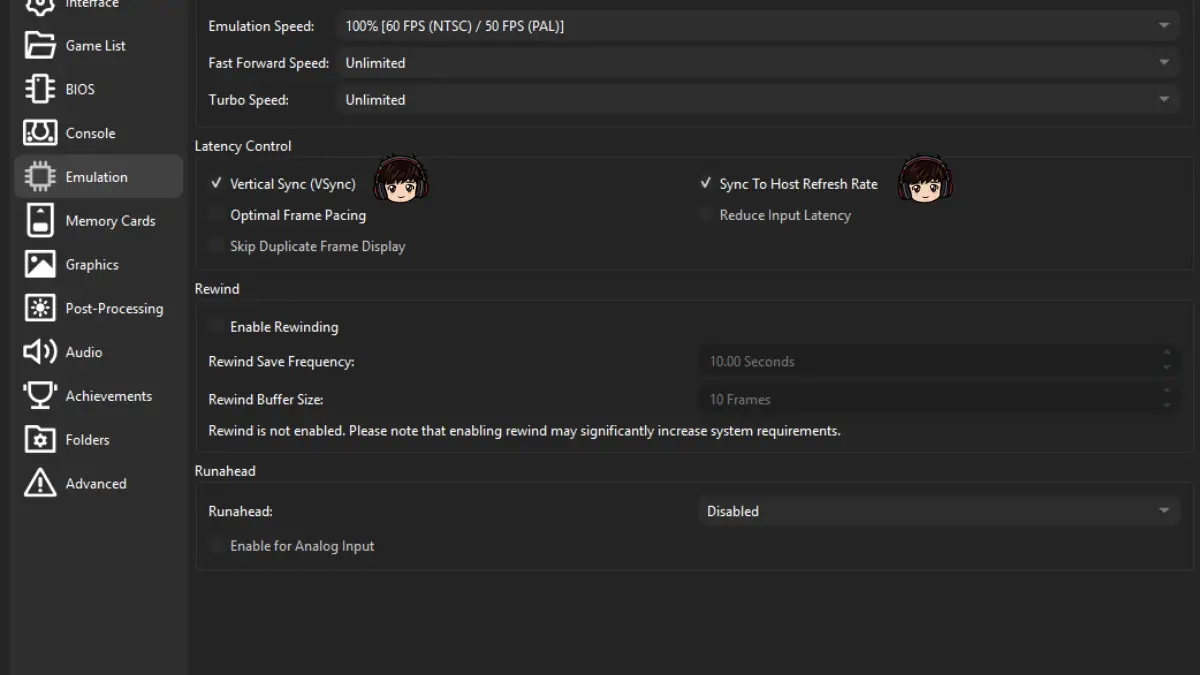
If You Have G-Sync or FreeSync
Make sure Optimal Frame Pacing is enabled. Leave Sync to Host Refresh Rate off, because DuckStation explicitly recommends disabling that option on variable-refresh displays. I would also start with DuckStation’s normal VSync-off behavior and let the VRR display do its job.
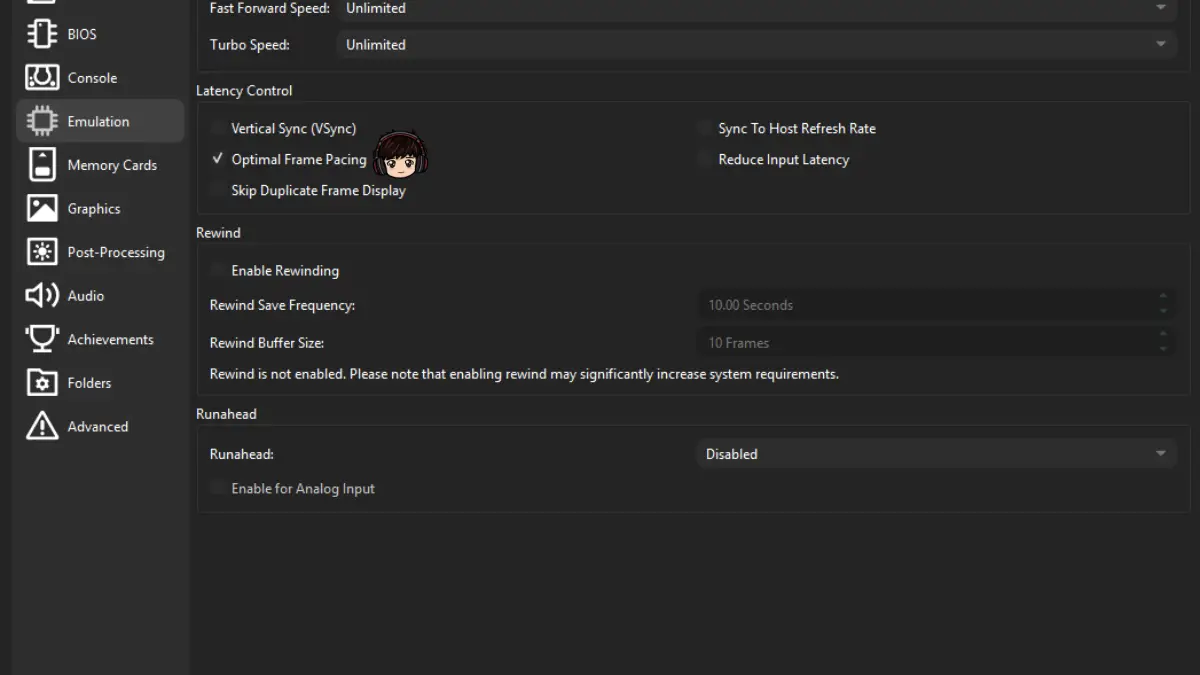
If You Have a Fixed-Refresh Monitor
Leave Optimal Frame Pacing at its current default first. If you have visible tearing, try VSync. If VSync is on and you still notice a repeating hitch caused by a tiny refresh mismatch, enable Sync to Host Refresh Rate. It only activates when the host refresh is close enough to the console’s rate.
The old article told non-VRR users to disable Optimal Frame Pacing whenever they used VSync and Sync to Host. Current DuckStation does not give that blanket instruction, and Optimal Frame Pacing became the desktop default in 2026, so I removed that rule.
If Optimal Frame Pacing itself causes trouble maintaining full speed or produces audio glitches, DuckStation’s tooltip explicitly suggests trying it disabled. That makes it a useful A/B test rather than a sacred checkbox.
Fix 2: Audio Buffering and Crackling
Menu: Settings → Audio
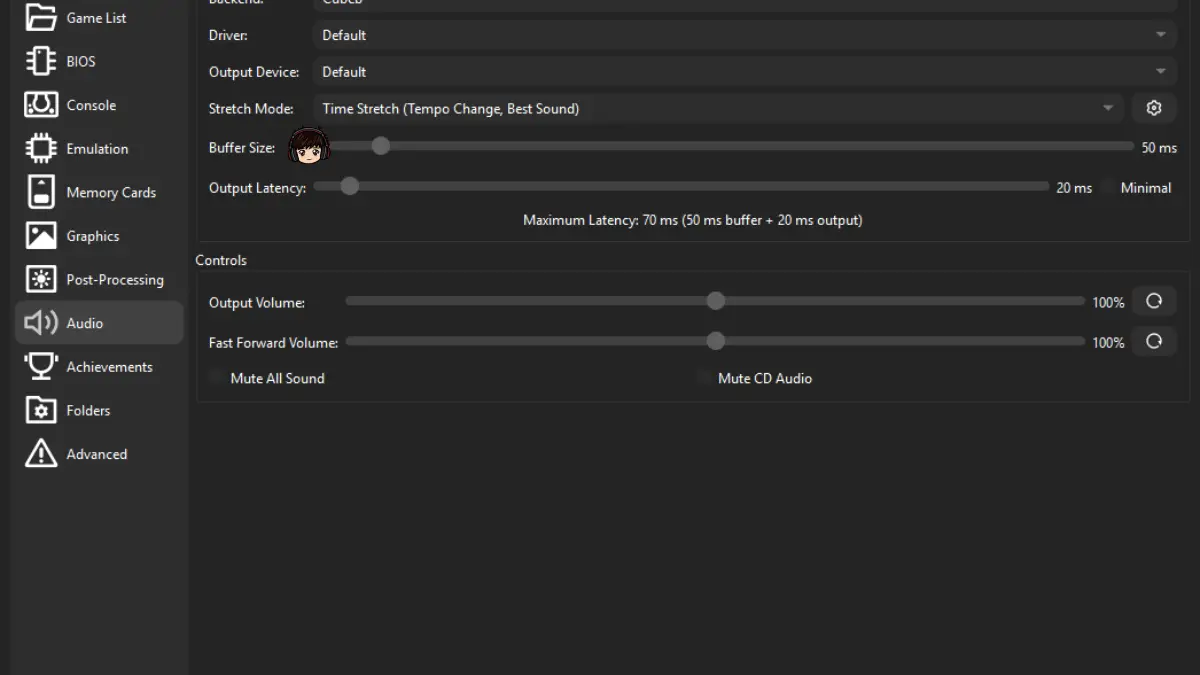
DuckStation says a smaller audio buffer reduces latency but can cause hitches when emulation speed is inconsistent. So if the stutter arrives with crackling, popping, or audio dropouts, raise Buffer Size a little and test again.
I removed the old universal recommendation of “50 ms buffer and 40 ms output latency.” Those numbers are not magic, and the right value depends on your host audio device and system. Start from DuckStation’s defaults, increase the buffer gradually, and use the lowest value that remains clean.
On desktop, Cubeb is the current default audio backend and DuckStation describes it as the lowest-latency option. If Cubeb gives you problems, the emulator specifically recommends trying SDL. Null disables host audio entirely.
If Emulation Speed is falling below 100% at the same time, fix that performance problem first. A bigger audio buffer can hide an underrun, but it cannot make an overloaded GPU or CPU suddenly finish its work.
Fix 3: DuckStation Is Actually Running Below Full Speed
Menu: Settings → Graphics and Settings → Emulation
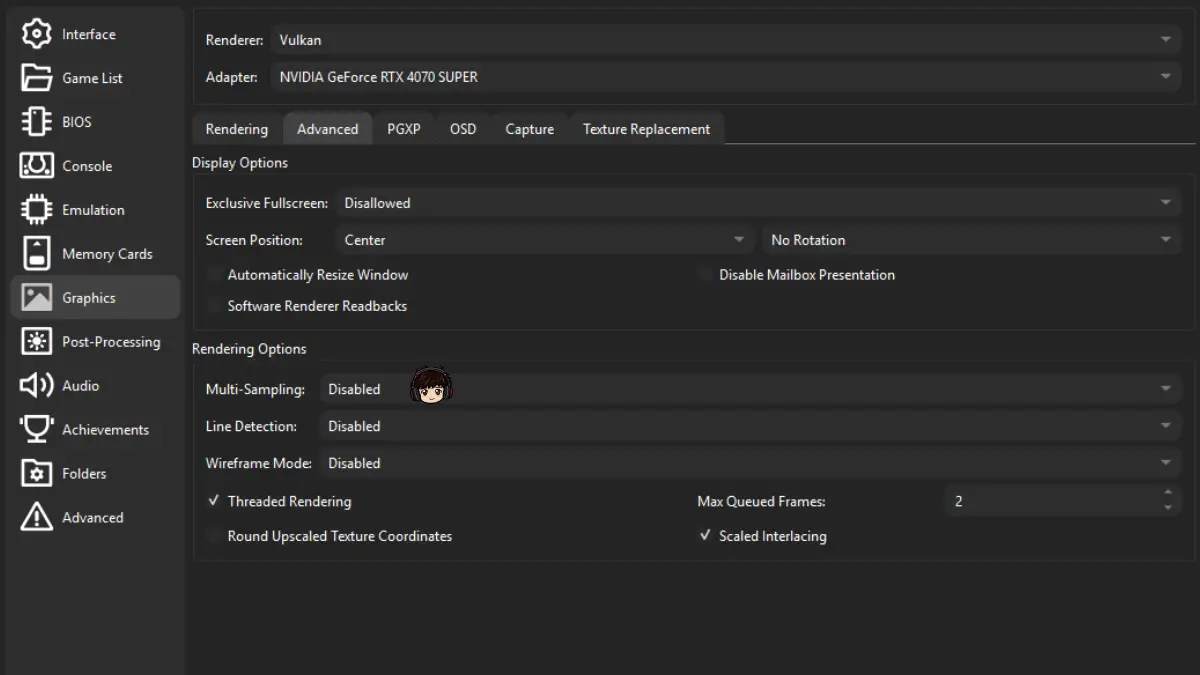
If Emulation Speed itself drops below 100%, this is a real host-performance problem. Start by lowering Internal Resolution one step. Then remove optional GPU work such as heavy post-processing shaders.
I would also disable Multi-Sampling if you turned it on. Current DuckStation warns that it often introduces rendering errors anyway, so increasing internal resolution is normally the safer way to clean up 3D edges.
Two settings the old article missed are also worth checking:
- Runahead: DuckStation labels it as having very high system requirements.
- Rewind: more frequent rewind saves and larger buffers increase system and memory requirements, especially when upscaling.
If you enabled PGXP CPU Mode, turn that off too. DuckStation calls out its high performance cost. Use Safe Mode at the bottom of the Settings window if you want the fastest test: Safe Mode disables enhancement options so you can see whether an enhancement is causing the problem without permanently resetting your configuration.
This is why I removed the old instruction to hit Restore Defaults before doing anything. Restore Defaults wipes your preferences and DuckStation warns that it cannot be undone. Safe Mode is the cleaner diagnostic.
Fix 4: Test Preload Image to RAM for Disc-Access Hitches
Menu: Settings → Console, or a game’s Properties → Console for a per-game test
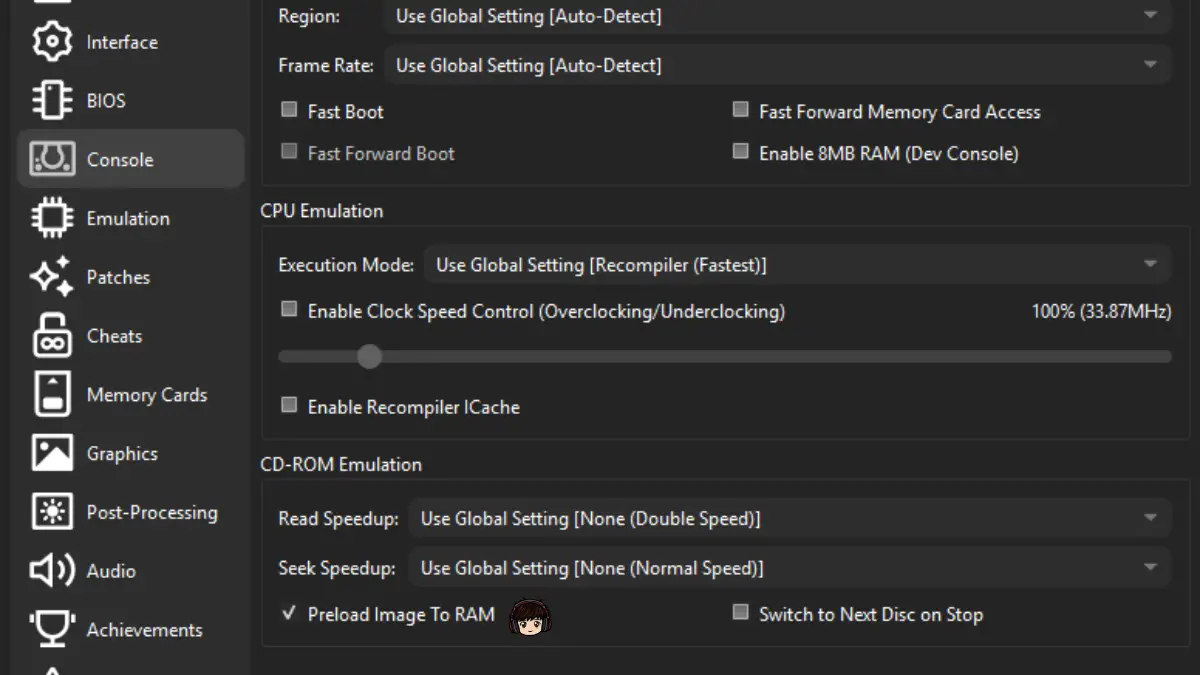
DuckStation’s own description is narrower than the old article made it sound. Preload Image to RAM is useful for network paths that may become unreliable during gameplay and can, in some cases, eliminate stutter when a game begins CD-audio playback.
That makes it worth testing if your hitch happens at the same loading transition, FMV, audio-track start, or when your game lives on network/removable storage. It is off by default and does not need to be enabled for a healthy local SSD.
I also removed the claim that preloading “eliminates storage-related hitches entirely.” It can eliminate the disc image as a live storage dependency after loading, but a PC can still stutter for plenty of other reasons.
If you are deciding whether storage itself needs upgrading, my DuckStation SSD guide explains why PS1 emulation barely cares about NVMe-versus-SATA speed.
Fix 5: Make Sure You Are Not Trying to “Fix” Original PS1 Slowdown
Menu: Settings → Console
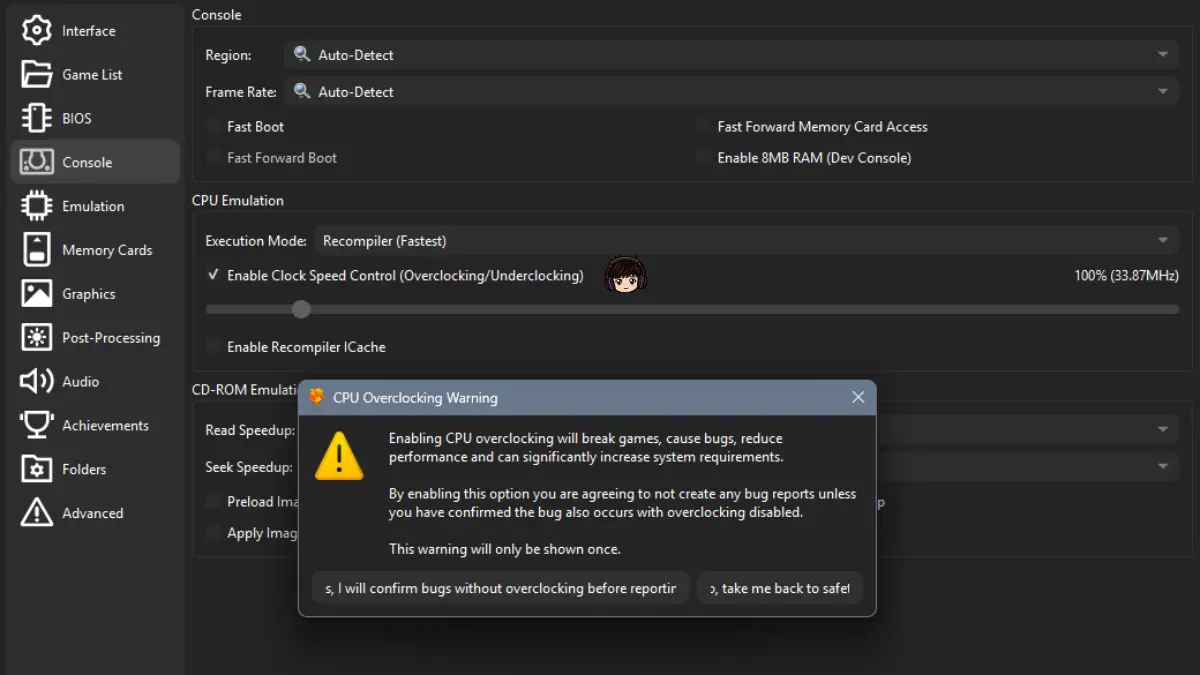
Here is the distinction that matters: if Emulation Speed stays around 100% but the game itself slows down in a demanding scene, DuckStation may simply be reproducing slowdown that happened on the original hardware.
DuckStation’s Enable Clock Speed Control can raise the emulated PlayStation CPU clock above 100%, which may reduce CPU-bound slowdown in some games. But this is an accuracy-breaking enhancement, not a normal stutter fix.
The emulator’s own warning is unusually blunt: CPU overclocking can break games, cause bugs, reduce performance, and significantly increase system requirements. That is why I removed the old advice that 125–135% was a universally “safe range.” There is no universal safe percentage.
If you deliberately want to reduce original-hardware slowdown, use Clock Speed Control per game, raise it in small steps, and test. If Emulation Speed itself is below 100%, do not use this fix. Overclocking the emulated PS1 CPU can actually make the host’s workload heavier.
What About DuckStation Stuttering on Android?
The same first question applies: is the emulator failing to maintain full speed, or is presentation uneven?
On Android, start by lowering Internal Resolution and disabling expensive enhancements. DuckStation’s current desktop frame-pacing defaults do not map perfectly to Android, and Optimal Frame Pacing is not enabled by default there. I would not copy the Windows G-Sync/VSync recipe onto a phone.
My DuckStation Android setup guide has the mobile-specific paths and troubleshooting so this article can stay focused on the desktop controls shown in the screenshots.
DuckStation Stuttering FAQ
Why does DuckStation stutter on a powerful PC?
A powerful PC can still show uneven frame pacing even when emulation speed stays at 100%. Turn on Show Emulation Speed and Show Frame Times first. If speed is stable, investigate frame pacing, VSync/refresh matching, audio underruns, or disc-access patterns before assuming the hardware is too weak.
Why is my PS1 game only running at 30 FPS?
Many PS1 games intentionally render at 30 FPS or lower. The important diagnostic is Emulation Speed. If DuckStation is around 100%, a 30 FPS game can be running exactly as intended.
Should I turn on VSync in DuckStation?
Use VSync if you have visible tearing on a fixed-refresh display and accept the possible input-lag tradeoff. G-Sync/FreeSync users should use Optimal Frame Pacing and keep Sync to Host Refresh Rate disabled.
Can audio settings cause DuckStation stutter?
They can contribute to hitches when audio buffering is too tight and emulation timing varies. DuckStation says smaller buffers reduce latency but may cause hitches if emulation speed is inconsistent. Increase Buffer Size gradually, and try SDL if the default Cubeb backend has problems.
Should I preload every PS1 game into RAM?
No. DuckStation leaves Preload Image to RAM off by default. It is most useful for unreliable network paths and some cases where starting CD audio causes a hitch. Healthy local storage normally does not need it.
Does CPU overclocking fix DuckStation stutter?
Not when DuckStation itself is below full speed. Clock Speed Control changes the emulated PlayStation CPU and is mainly useful if you intentionally want to reduce slowdown that existed on the original console. DuckStation warns that overclocking can break games and increase system requirements.
The Short Version
Watch Emulation Speed first. That one number separates a lot of fake mysteries from real performance problems.
Below 100%? Lower Internal Resolution and expensive features. At 100% with periodic judder? Check frame pacing and refresh sync. Crackling too? Increase the audio buffer. Hitching when disc audio or data starts? Test Preload Image to RAM. Still at 100% while the game itself slows down? That may simply be the original PlayStation sweating.
If DuckStation is actually crashing instead of stuttering, that is a different problem. My DuckStation crashing guide has the symptom-by-symptom fixes for that one.