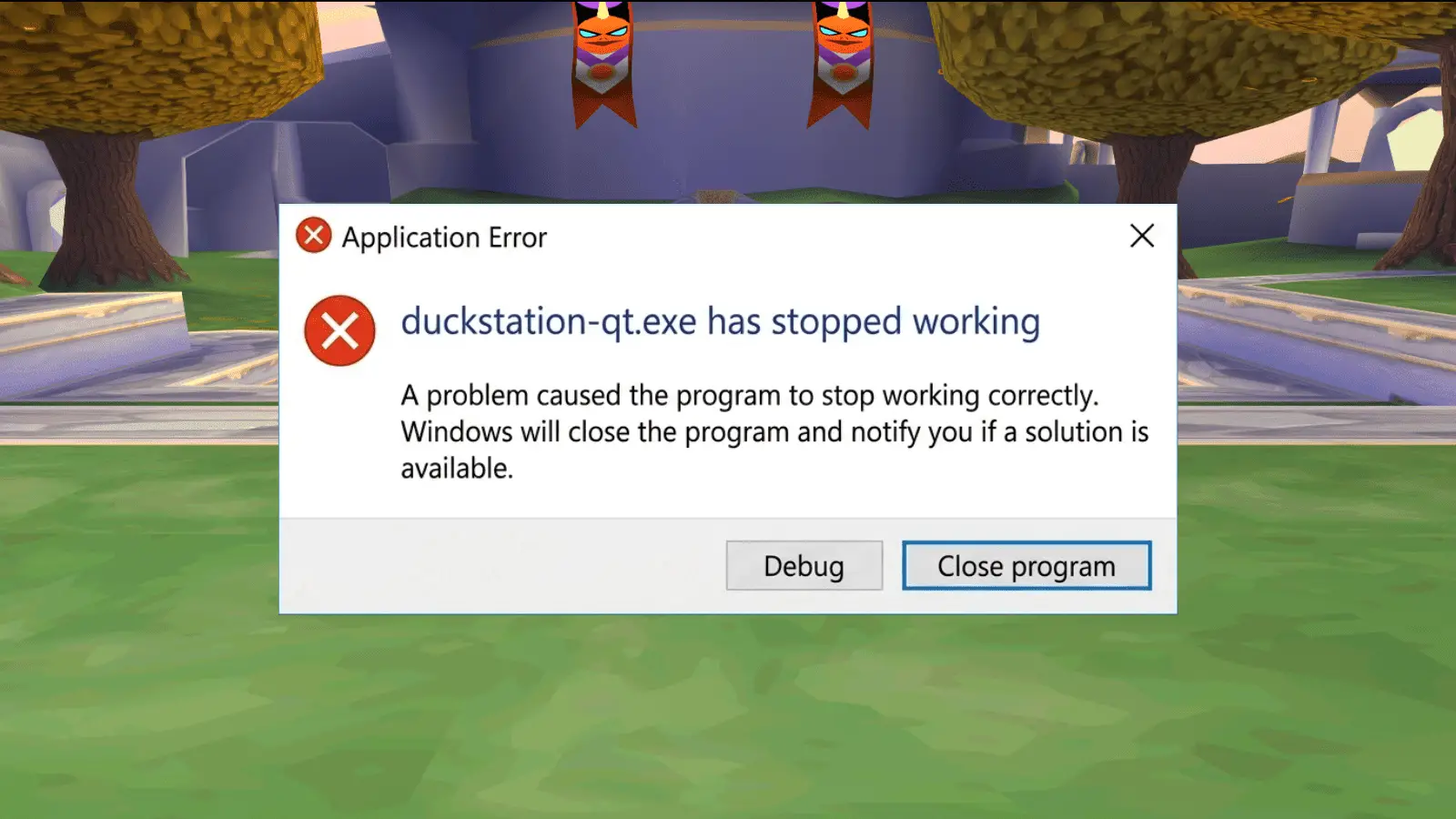
DuckStation keeps crashing, and the worst part is that the symptom does not always tell you the cause. A bad graphics enhancement can look like a renderer problem. One protected PAL game can look like a broken emulator. A missing Windows runtime can make DuckStation disappear before the interface even opens.
So instead of throwing seven random fixes at the wall, this guide starts with when DuckStation crashes. Match your symptom first, then work down that section. Most of the old “delete this folder, change this backend, run everything as administrator” advice floating around the internet is either outdated or far too aggressive.
Last checked: August 22, 2026. I rechecked the current DuckStation system requirements, Visual C++ runtime requirement, renderer defaults, Safe Mode behavior, controller input backends, data-directory locations, PAL LibCrypt/SBI behavior, game-list rescanning, and official logging instructions.
Before troubleshooting: open Help → Check for Updates and install the current DuckStation build. Current releases support Windows 10/11 version 1809 or newer, macOS 13.3 or newer, and current Linux AppImages built for distributions roughly equivalent to Ubuntu 22.04 or newer. If you are using an ancient build, fix that before debugging the ancient build.
Which DuckStation Crash Are You Getting?
| Symptom | Start Here |
|---|---|
| DuckStation will not open at all | Fix 1: startup requirements and runtime |
| DuckStation opens, then crashes when a game starts | Fix 2: Safe Mode and renderer |
| Only one game crashes or hangs | Fix 3: game image, SBI, patches and BIOS |
| The game list scan freezes or behaves strangely | Fix 4: rescan and isolate the library |
| DuckStation crashes only with a controller connected | Fix 5: isolate the input device |
| Crashes started after changing graphics/settings | Fix 6: Safe Mode, per-game settings and defaults |
| Crashes seem random and none of the above explains them | Fix 7: make a debug log |
Fix 1: DuckStation Crashes or Will Not Open
If the program never reaches the main window, do not start changing graphics settings you cannot even reach. Check the boring requirements first.
Windows: Check the Visual C++ Runtime
DuckStation’s current Windows documentation specifically calls out a missing vcruntime140_1.dll error. If you see that message, install the current Microsoft Visual C++ Redistributable. On a normal x64 Windows PC, DuckStation’s documentation points to the x64 runtime.
Do not download individual DLL files from random DLL websites. That turns a simple runtime problem into a tiny cybersecurity carnival.
Make Sure You Downloaded the Correct DuckStation Build
DuckStation now provides separate Windows x64 and ARM64 builds. Most Intel and AMD PCs use x64. Snapdragon Windows machines use ARM64. The official DuckStation README also recommends the installer for normal Windows users, while the ZIP release can be used as a portable installation.
If you use the ZIP build, extract it into its own folder before launching it. Do not run the executable from inside the ZIP archive.
Check the Operating System
Current DuckStation requires Windows 10/11 version 1809 or newer or macOS 13.3+. The current Linux AppImages require a distribution roughly equivalent to Ubuntu 22.04 or newer. If the operating system itself is unsupported, renderer tweaks are not going to negotiate a peace treaty.
If Windows Security or another security tool blocks the executable, first make sure you downloaded DuckStation from the official project. Check the security application’s protection history for the exact reason. I would not tell readers to blindly whitelist an emulator executable or click through every warning simply because a troubleshooting article said so.
Fix 2: DuckStation Crashes When a Game Starts
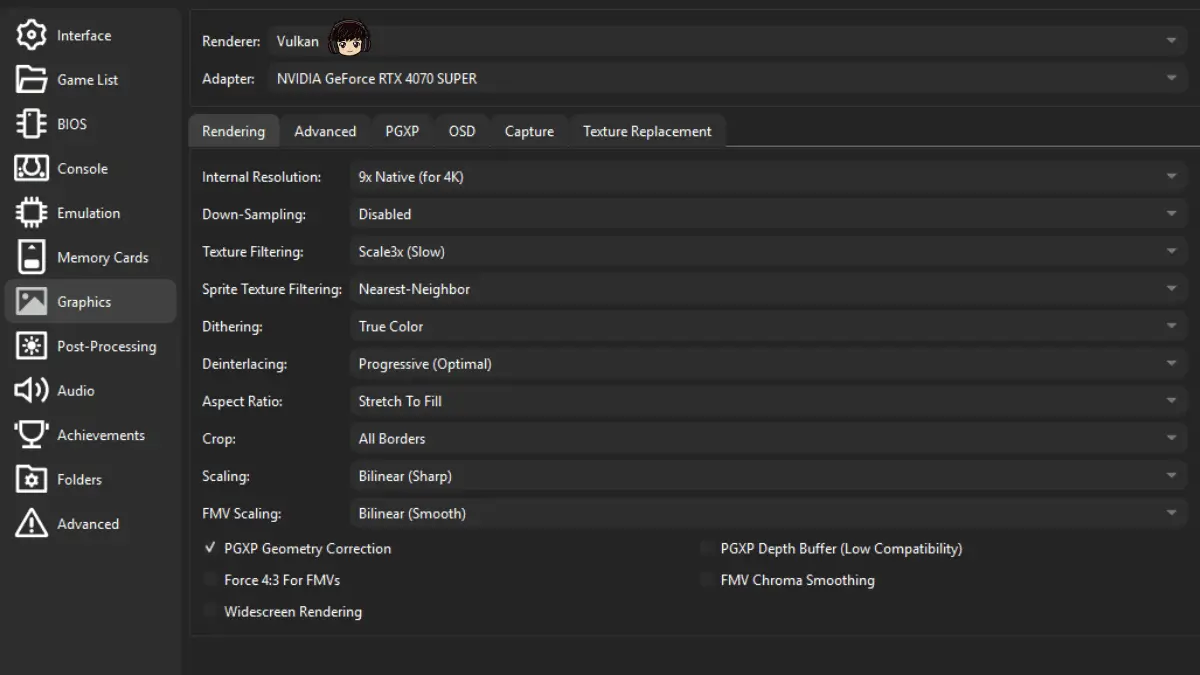
The old version of this guide told NVIDIA/AMD users to use Vulkan, Intel users to use OpenGL, and Mac users to use Vulkan. I would not publish that advice now.
DuckStation’s current default renderer is Automatic. The emulator supports different backends depending on platform, including Direct3D 11/12 on Windows, Metal on macOS, OpenGL, Vulkan where available, and the software renderer.
Start with Settings → Graphics → Renderer → Automatic. If the game still crashes immediately, enable Safe Mode from the Settings window. DuckStation describes Safe Mode as disabling all enhancement options so you can quickly test whether an enhancement is responsible.
If Safe Mode works, the emulator itself is probably fine. Something you enabled is the problem. My DuckStation settings guide explains which enhancements are low-risk and which ones I would keep off globally.
If Safe Mode still crashes, try the Software renderer as a diagnostic. DuckStation describes it as the slowest renderer but the compatibility-first option, and it does not use the normal hardware-rendering enhancements. If Software works while hardware rendering crashes, update the graphics driver and then test Automatic again.
On Windows, get GPU drivers from NVIDIA, AMD, or Intel when you are diagnosing a graphics-driver problem. I would not claim Windows Update drivers are always broken or that a six-month-old driver automatically causes crashes. The useful rule is simpler: if the crash is renderer-specific, test a current vendor driver.
Fix 3: Only One Game Crashes or Hangs
If twenty games work and one does not, stop treating your whole DuckStation installation as guilty.
Test the Game With Safe Mode
First enable Safe Mode and launch the problem game again. DuckStation’s current per-game settings also include patches and cheats, and the emulator explicitly warns that both can cause crashes, glitches, soft-locks, and even broken saved games.
If you used a cheat, disable it and restart the emulated game rather than loading straight back into an old save state. DuckStation warns that cheat effects can persist through save states after the code itself is turned off.
Validate or Re-Dump the Disc Image
Current DuckStation builds include disc-image validation information in a game’s properties/summary page. If the image is damaged or incomplete, re-dump the disc you own rather than repeatedly troubleshooting the emulator around bad source data.
If you created your own BIN/CUE dump, DuckStation’s setup wizard specifically mentions tools such as ImgBurn for dumping owned discs. Keep every track referenced by the CUE file together.
PAL Game? Check LibCrypt and SBI
This part of the original article was correct and worth keeping. A number of PAL games use LibCrypt protection and require CD subchannel data. DuckStation says missing LibCrypt data commonly manifests as hangs or crashes.
If the game needs an SBI file, give the disc image and the .sbi file the same base filename and keep them in the same folder. For example, Spyro3.cue and Spyro3.sbi. DuckStation loads it automatically. CHD images can also contain the required subchannel data internally.
If No Games Boot, Check the BIOS
DuckStation requires a PS1 or PS2 BIOS image. Use Tools → Open Data Directory and place your dumped BIOS in the bios folder, or configure it through the BIOS settings. DuckStation’s own error message instructs users to dump a BIOS from a console they own.
A missing BIOS normally produces a clear error rather than silently crashing the entire application, so this belongs under “nothing boots” rather than “DuckStation randomly closes.”
Fix 4: The Game List Scan Freezes or Acts Broken
The original guide said a damaged game file causes this “the vast majority of the time.” I could not substantiate that, and current DuckStation is designed to mark invalid files and continue scanning rather than simply explode when it sees one.
Use Settings → Rescan All Games first. DuckStation’s current menu description says this rescans the entire library while discarding cached information. That is cleaner than manually hunting through internal cache files.
If the scan still hangs at the same place, then isolate the directory. Temporarily remove half the files from the scanned folder and rescan. If the problem disappears, narrow that half again until you identify the file or subfolder involved. That process is useful because it proves which input triggers the problem instead of assuming corruption from the beginning.
Also make sure your library uses formats DuckStation actually supports. The current project supports common PlayStation disc formats including BIN/CUE, MDS/MDF, CCD, CHD, ECM and unencrypted PBP.
Fix 5: DuckStation Crashes Only When a Controller Is Connected
Unplugging the controller is still a useful diagnostic. It is not proof that everybody should disable SDL and move to DirectInput.
Current DuckStation calls SDL the preferred input source for most controllers. DirectInput is described as a legacy option for controllers that do not support XInput, with SDL recommended instead. The emulator also leaves DirectInput and XInput sources disabled by default while SDL is enabled.
So if DuckStation starts normally only after you disconnect a gamepad:
- Start DuckStation with the problem controller disconnected.
- Open Settings → Controllers.
- Reconnect the controller and try Automatic Mapping, which DuckStation says handles most controllers.
- If the crash returns specifically when SDL detects that device, then test another input backend as a troubleshooting step, not as a universal “better” setting.
- Remove controller-remapping wrappers or duplicate virtual gamepad software temporarily if you use them, then test again.
The old article told everyone to disable SDL and enable DirectInput. That is the opposite of DuckStation’s current preference, so I removed it.
Fix 6: Crashes Started After You Changed Settings
This is the easiest category because DuckStation already gives you a diagnostic button.
Open Settings and enable Safe Mode. The current tooltip says Safe Mode disables all enhancement options and is specifically intended to determine whether an enhancement is responsible for game bugs.
If the crash stops, turn Safe Mode back off and undo your changes one at a time. Start with the settings DuckStation itself labels risky: PGXP Depth Buffer, Multi-Sampling, texture replacement/cache features, widescreen rendering, experimental patches, cheats, and large post-processing chains.
If one game’s custom settings are the problem, clear or reset that game’s configuration rather than destroying your global setup.
If your entire configuration is scrambled, DuckStation also has a global Restore Defaults button in the Settings window. Be aware that this restores general preferences, not just the one Graphics tab. Current DuckStation explicitly warns that the action cannot be undone.
I removed the old “delete the shader_cache folder” instructions because current DuckStation gives you safer built-in ways to isolate settings problems, and manually deleting internal folders should not be step two of a beginner troubleshooting guide.
What If Windows Blocks DuckStation or the File Picker Freezes?
I also removed the blanket advice to Run as administrator and add DuckStation to your antivirus exclusions. Neither should be a routine emulator setup step.
If Windows Security blocks DuckStation, verify that the copy came from the official DuckStation site/GitHub release and inspect the exact alert in Windows Security. Only create an exclusion when you have actually confirmed a false positive. Do not whitelist an unknown third-party build because a blog post told you to.
If only the Windows file dialog freezes, test whether normal Explorer file dialogs are also affected and temporarily disable software that injects itself into Explorer or cloud-sync overlays. The old article named specific shell extensions as confirmed causes, but I could not verify those names strongly enough to keep presenting them as current DuckStation facts.
Fix 7: Make a DuckStation Debug Log
If none of the symptom-based fixes explains the crash, stop guessing and make the emulator tell you what it was doing.
- Open Settings → Advanced.
- Set Log Level to Debug.
- Enable Log To System Console and Log To File.
- Close and reopen DuckStation.
- Reproduce the crash.
- Reopen DuckStation and use Tools → Open Data Directory.
- Open
duckstation.logand inspect the final section for the failure immediately before the crash.
These are DuckStation’s own logging instructions. When you are finished troubleshooting, set Log Level back to Information and disable the extra logging outputs. The project specifically recommends turning them back off afterward.
The Tools → Open Data Directory shortcut is also the cleanest way to find the correct user folder. Current Windows installs use AppData\Local\DuckStation, while older installations may still use Documents\DuckStation. Linux normally uses ~/.local/share/duckstation, and macOS uses ~/Library/Application Support/DuckStation. Portable mode keeps the data beside the executable when portable.txt is present.
Once you have a log, search the current DuckStation GitHub issues or use the project’s Discord rather than applying twenty more random registry-level exorcisms.
DuckStation Crashing FAQ
Why does DuckStation crash when I open a game?
Start by enabling Safe Mode and leaving Renderer on Automatic. If Safe Mode fixes the game, one of your enhancements is responsible. If the Software renderer works but hardware rendering crashes, update your GPU driver and test Automatic again.
Why does only one PS1 game crash in DuckStation?
Check that game’s per-game enhancements, cheats and patches first. Then validate or re-dump the disc image. PAL games using LibCrypt may need matching SBI subchannel data unless the disc format already contains it.
Where is duckstation.log?
Enable Log To File under Settings → Advanced, reproduce the problem, then use Tools → Open Data Directory. The log is named duckstation.log in that user directory.
Where is the DuckStation data folder on Windows?
Current Windows installations use AppData\Local\DuckStation. Older installs may still use Documents\DuckStation. Rather than guessing which generation your install belongs to, use Tools → Open Data Directory.
Should I switch DuckStation from SDL to DirectInput?
Not by default. DuckStation currently describes SDL as the preferred input source for most controllers. DirectInput is mainly a legacy fallback. Only change input backends when you have confirmed that a particular device or input source is causing the problem.
Does DuckStation need an SBI file?
Only some PAL games protected by LibCrypt need additional subchannel information. For those games, a matching SBI file can prevent hangs or crashes. DuckStation automatically loads it when the SBI and disc image share the same base filename in the same folder.
The Short Version
Update DuckStation. Use Automatic renderer. Turn on Safe Mode. Then diagnose the symptom instead of changing everything at once.
If the application itself will not open, check the operating system and Visual C++ runtime. If games crash only at launch, test Safe Mode and Software rendering. If one game fails, check its image, patches, cheats, BIOS and PAL SBI requirements. If the library scan breaks, use Rescan All Games before deleting anything manually. If a controller triggers the crash, isolate the device before changing input backends.
And when none of that explains it, make a debug log. A crash with evidence is a problem. A crash with no evidence is just DuckStation disappearing into the bushes.
If your problem is stuttering rather than crashing, use my DuckStation stuttering guide instead. Different monster, different flashlight.