You can have DuckStation running PS1 games on Android in about ten minutes. The first-run setup handles most of the boring parts. You mainly need a compatible phone, a BIOS dumped from your own console, and your own game backups already stored locally on the device.
DuckStation is one of the strongest PS1 emulators available on Android because it combines high compatibility with useful extras like resolution upscaling, PGXP, save states, fast forward, controller support, RetroAchievements, and per-game settings. This guide takes you from a fresh install to your first game without turning the settings menu into homework.
Last checked: August 22, 2026. DuckStation uses rolling releases, so Android menu names can move between builds. The advice below is built around current DuckStation defaults and the current Google Play / project documentation rather than locking the guide to one old screenshot.
BIOS and games: DuckStation does not include a PlayStation BIOS or games. Dump the BIOS from hardware you own and use backups you are legally allowed to use. This guide does not provide BIOS or game downloads.
TL;DR: DuckStation Android in One Block
2. Install DuckStation from Google Play.
3. Follow the first-run setup wizard.
4. Renderer: leave Automatic.
5. Internal Resolution: start at 2x; drop to 1x if performance struggles.
6. Aspect Ratio: leave Auto / Game Native.
7. Import your BIOS and add your game directory.
8. Pair/map a controller if you use one, or customize the touch overlay in-game.
9. Tap a game and play.
What You Need for DuckStation on Android
You need three things: a compatible Android device, a PlayStation BIOS dump, and your own PS1 game backups.
Android hardware: I would not pin this guide to a specific Android version anymore. DuckStation’s current project documentation focuses on CPU architecture and graphics support: ARM32, ARM64, and x86_64 are supported, with 64-bit preferred. The GPU needs OpenGL ES 3.1 or Vulkan 1.0-class support. The Google Play Store will also tell you whether the current build is compatible with your device.
BIOS: DuckStation requires a BIOS image. You do not need to chase one magic “best BIOS” model number. Current DuckStation documentation says BIOS images from different PlayStation hardware revisions and regions can work, although mismatching a game and BIOS region can create compatibility problems.
Game formats: Current DuckStation supports common disc-image formats including .cue/.bin, raw .bin/.img, .iso, .chd, single-track .ecm, .mds/.mdf, .ccd, and unencrypted .pbp. For multi-disc games, .m3u playlists are also useful. I prefer CHD for a phone library because it compresses cleanly and avoids loose BIN/CUE clutter.
How to Get Your BIOS and Games onto Your Phone
Put the files in local storage somewhere you can find again. I use one folder for BIOS files and another for PS1 games. The names do not matter; remembering where you put them does.
Option 1: Google Drive
Upload the files from your computer, download them through Google Drive on the phone, then move them into your permanent BIOS and games folders with your phone’s file manager. DuckStation needs access to the local files you select; simply leaving a game sitting in cloud-only storage is not the same thing as adding a local game directory.
Option 2: USB or Quick Share
On Windows, connect the phone, choose File Transfer from the Android USB notification, and copy the files over. Quick Share for Windows is another easy option. I removed the old recommendation to install Google’s Android File Transfer for Mac because Google no longer distributes that old Mac utility.
Step 1: Install DuckStation on Android
Install DuckStation from Google Play. The official project also links Android downloads from its own site, but Google Play is the easiest path for most people.
Open the app and follow the first-run wizard. DuckStation’s own Android instructions still boil the process down to exactly that: install, run it once, and follow the setup wizard.
Step 2: DuckStation Android Graphics Settings
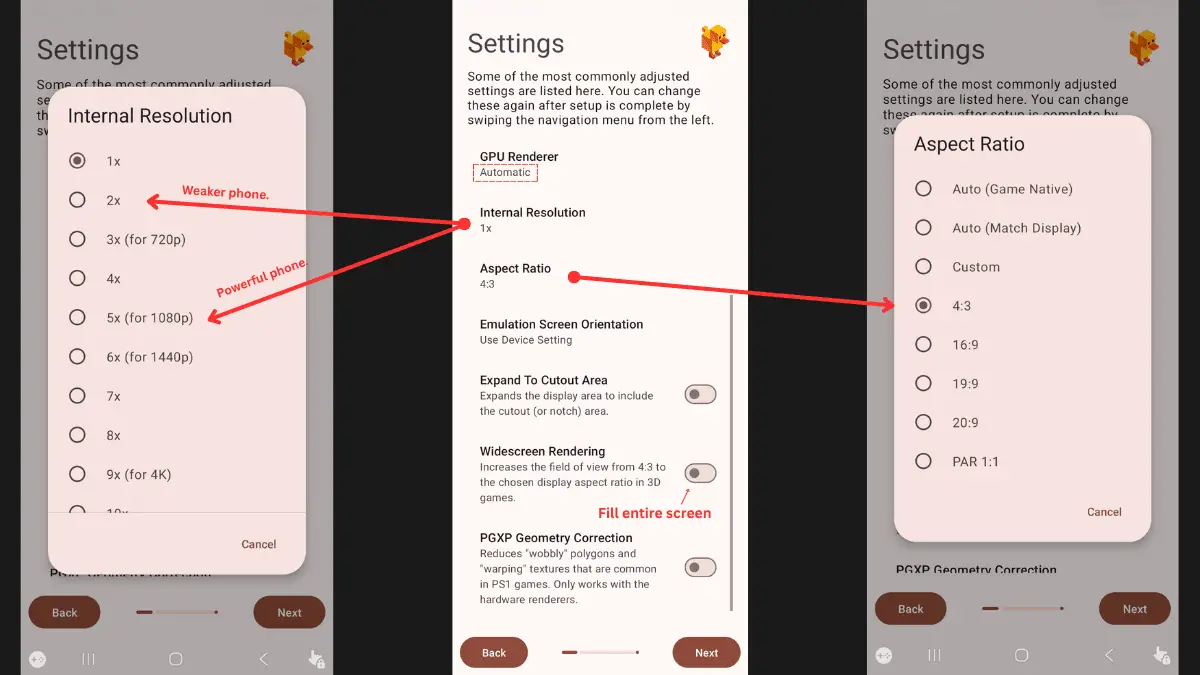
The exact wizard layout can move between rolling releases, but these are the settings I would use as a beginner starting point.
Leave this on Automatic. If you later hit a renderer-specific problem, test Vulkan, OpenGL, or Software manually instead of forcing one backend before anything is wrong.
2x is a sensible visual upgrade on many modern phones, but it is not free. If emulation speed drops below 100%, return to 1x before changing a pile of unrelated settings.
The old guide told everyone to set 4:3. Current DuckStation defaults to automatic game-native aspect handling, which is the cleaner global setting. Keep the separate widescreen-rendering enhancement off unless you specifically want to test it per game.
PGXP can reduce the classic PS1 polygon wobble. It works well in many 3D games, but I would treat it as an enhancement rather than part of the minimum setup. Turn it on per game if you like the cleaner geometry and turn it back off if a title behaves strangely.
For a deeper explanation of these options, see my best DuckStation settings guide.
Step 3: Import Your PS1 BIOS
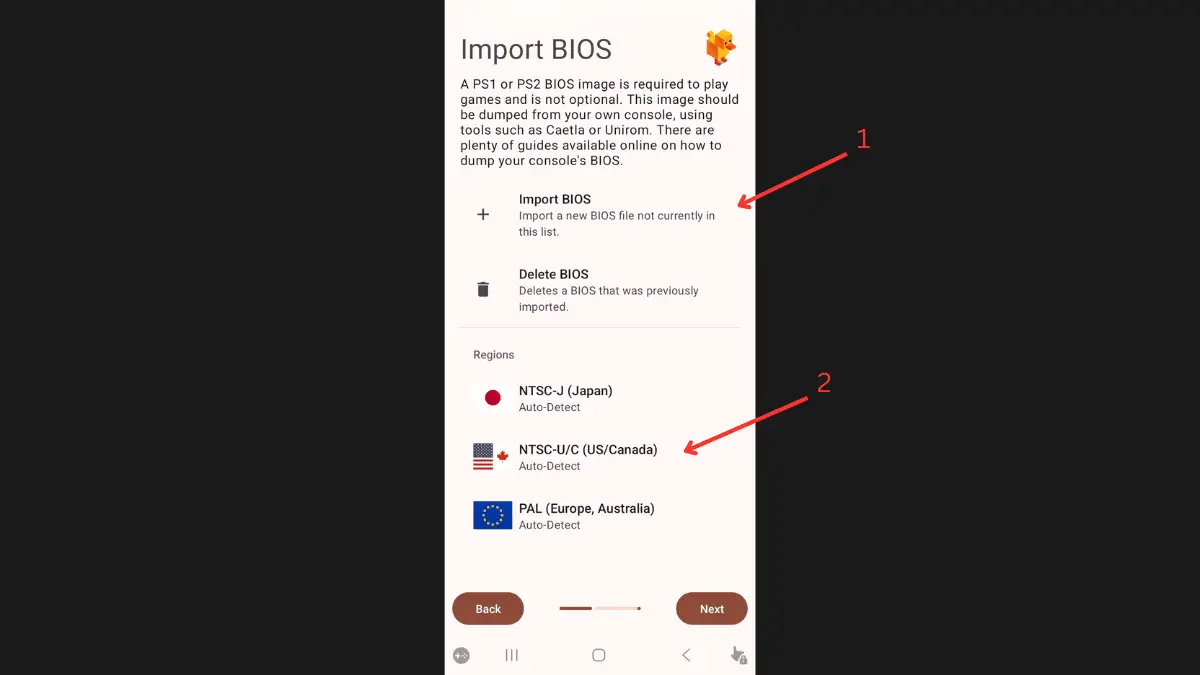
Use the wizard’s BIOS import option and select the BIOS file you dumped from your console. DuckStation requires a BIOS to start games, but you do not need to hunt for a particular SCPH revision just because an old guide called it “most compatible.” Current DuckStation explicitly supports BIOS images from different hardware versions and regions.
If you keep BIOS files for multiple regions, Auto-Detect can choose the appropriate region when possible. A mismatched BIOS and game region can cause compatibility problems, but it is not accurate to say a North American BIOS simply cannot run a PAL game under any circumstances.
Step 4: Add Your PS1 Game Directory
Add the folder where your game backups live and allow DuckStation to scan it. If a game does not appear, confirm that the file is actually inside the selected directory and that its disc image is complete. For BIN/CUE dumps, the CUE sheet must correctly reference the BIN tracks.
Multi-disc games are easier than they used to be. Current DuckStation can merge recognized multi-disc titles in the game list and share memory cards between discs. An .m3u playlist is also a clean way to define disc order manually.
Step 5: Check Fast Boot
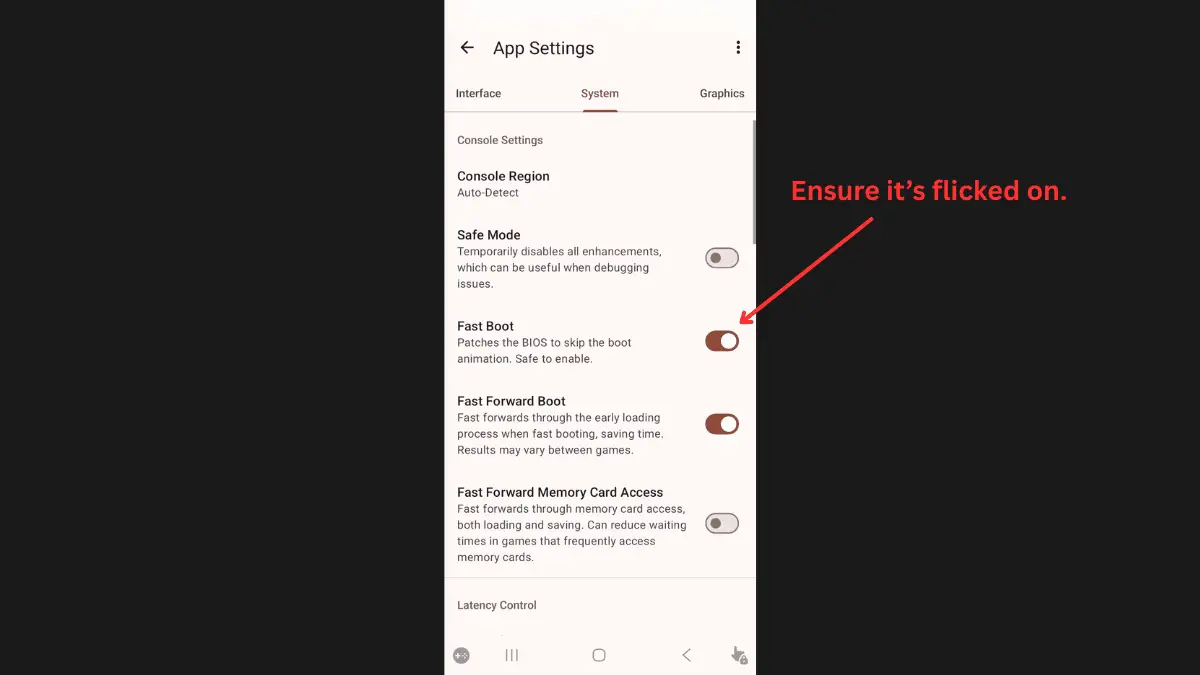
This section changed the most since the original article. Current DuckStation source sets Fast Boot on by default on Android, so you usually do not need a whole setup step telling you to enable it.
Fast Boot skips the PlayStation boot animation and DuckStation labels it safe to enable. If you want the original Sony startup sequence for nostalgia, turn it off. Otherwise, leave the Android default alone and enjoy getting into the game faster.
Step 6: Bluetooth Controller and Touchscreen Setup
Bluetooth Controller
Pair the controller through Android’s Bluetooth settings first, then open DuckStation’s controller settings and map Port 1. The official Android instructions say external controllers need their buttons and sticks mapped. If your build offers automatic mapping, use that as the first pass and fix individual bindings only if needed.
I removed the old blanket claim that a controller must be connected before DuckStation launches. If a controller is not detected after pairing, reconnecting it or restarting the app is a reasonable troubleshooting step, but it is not a universal setup requirement.
Touchscreen Controls
Launch a game first, then open the in-game controls menu to move, scale, or hide the touchscreen overlay. This is worth spending a few minutes on because the default layout rarely matches where your thumbs naturally sit.
Step 7: Start Your First Game
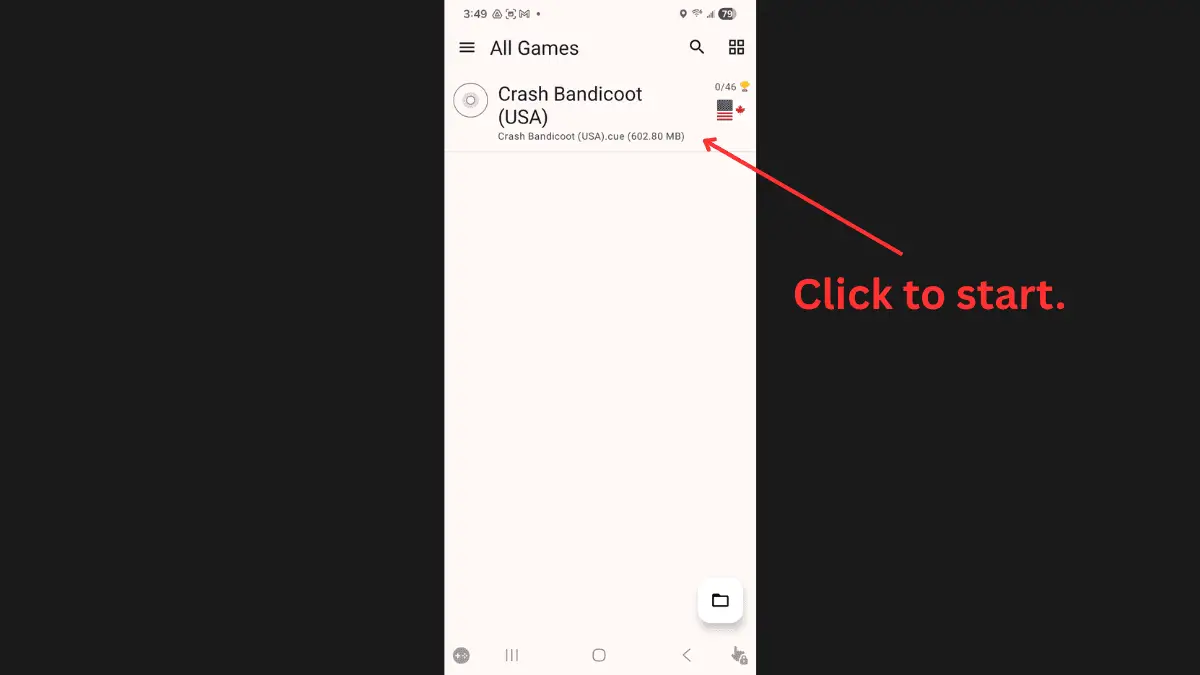
Tap a game in the library and let the defaults do their job before you start tweaking. Memory-card saves work like the original console, while save states are a separate emulator feature.
You also do not need to panic about closing the app from Android’s task switcher. The old version warned that doing so could corrupt your saves unless you used Exit Game first. That was too absolute. The sensible rule is simply not to kill the app while a game is actively writing to its memory card.
Step 8: Save States and Fast Forward
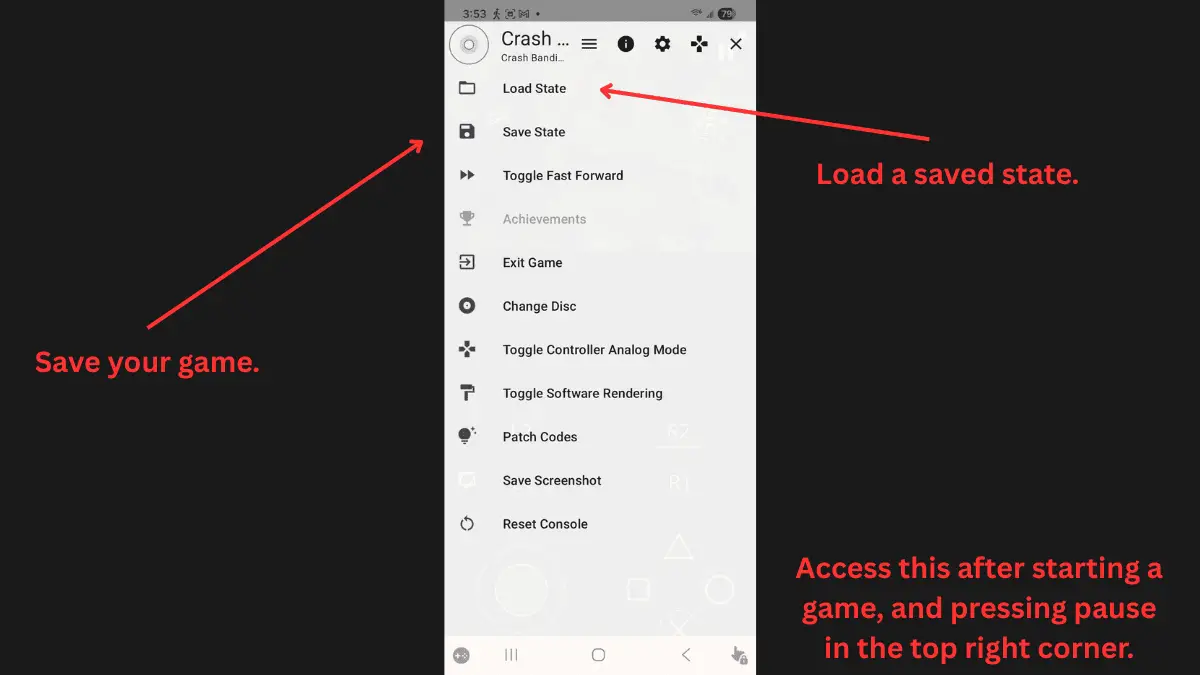
Save States
Save states capture the emulator’s entire current state, which makes them great for retries, grinding, or stopping in awkward places. They are not tied to the exact game-file path in the simple way the old guide claimed; current DuckStation identifies per-game states by game identity/serial internally. The bigger long-term concern is state-format compatibility between emulator updates.
Fast Forward
Fast Forward is configurable. The old guide described it as a fixed 2x mode, but current DuckStation exposes a separate fast-forward speed setting. Use whatever speed your phone can sustain without turning the game into hot silicon soup.
DuckStation Android Troubleshooting
Game will not launch or I get a black screen
Confirm that DuckStation recognized your BIOS and that your game dump is valid. If you use multiple regions, Auto-Detect plus appropriate regional BIOS files is the cleanest setup. Do not assume every launch failure is a region mismatch.
A game is missing from the library
Rescan the game directories, confirm the file is inside a selected folder, and verify the format. With BIN/CUE dumps, check that the CUE sheet points to the correct BIN filenames. CHD avoids most of this clutter.
Audio is crackling or the game is stuttering
First check whether emulation speed is staying around 100%. If speed is dropping, lower Internal Resolution and disable expensive enhancements before changing audio buffers. If the game is at full speed and only audio is unstable, then experiment with audio latency/buffer settings.
Graphics look corrupted
Return enhancements to default first. If you enabled PGXP, widescreen rendering, filtering, or other enhancements, disable them one at a time. Then test another hardware renderer, or Software as a diagnostic. If Software fixes it, you have narrowed the problem to the hardware-rendering/enhancement path.
My Bluetooth controller is not mapped correctly
Pair it in Android first, then open DuckStation Controller Settings and map Port 1. Use automatic mapping if your build offers it. If the device is paired but missing, reconnect it and restart DuckStation before assuming the controller is unsupported.
How do I handle multi-disc games?
Keep all discs together. Current DuckStation can merge recognized disc sets and share memory cards between them. You can also use an M3U playlist to define a multi-disc set manually, then use Change Disc when the game asks for the next disc.
Should I reset all settings when something breaks?
Not as your first move. Resetting configuration can erase useful preferences and make troubleshooting harder. Test the specific setting you just changed, or return to defaults selectively. Use a full reset only when you intentionally want to rebuild the configuration.
If the problem is performance rather than Android setup, my DuckStation stuttering guide goes deeper. If the emulator itself is closing or refusing to launch games, use the DuckStation crashing guide.
DuckStation Android FAQ
What are the requirements for DuckStation Android?
DuckStation supports ARM32, ARM64, and x86_64 Android devices, with 64-bit preferred. Hardware rendering requires OpenGL ES 3.1 or Vulkan 1.0-class graphics support. Rather than memorizing an old Android-version cutoff, check the current Google Play listing on the phone you plan to use.
What game formats does DuckStation support?
Common supported disc formats include CUE/BIN, raw BIN/IMG, ISO, CHD, ECM, MDS/MDF, CCD, and unencrypted PBP. M3U playlists are useful for multi-disc games. ZIP and 7Z archives are not game-image formats, so extract your own backup first.
Does DuckStation Android support PS4, PS5, Xbox, and 8BitDo controllers?
Android can expose those common Bluetooth/USB controllers to DuckStation, but controller behavior depends on the device and Android build. Pair the controller at the OS level and map it in DuckStation rather than assuming every pad will arrive perfectly configured.
Should I use 4:3 or widescreen?
Leave the display aspect ratio on Auto / Game Native for the safest global setup. DuckStation also has a widescreen-rendering enhancement for supported games, which is different from simply stretching a 4:3 image. Try widescreen per game if you want it, but expect occasional pop-in, HUD, or geometry quirks.
Can I download cover art automatically on Android?
DuckStation’s older Android cover workflow is primarily manual rather than a one-click downloader. If you want to manage covers yourself, DuckStation supports custom cover images in its data folders. The Windows setup guide covers the desktop-side cover workflow.
Can DuckStation play PS2 games?
No. DuckStation is a PlayStation 1 emulator. A PS2 BIOS does not turn it into a PS2 emulator.
The Short Version
Install DuckStation, leave the renderer on Automatic, start at 2x resolution, keep aspect ratio on Auto, import your BIOS, add your games folder, and play.
Fast Boot is already the Android default in current DuckStation, so you do not need to hunt for it unless you want to turn the original boot sequence back on. Use memory-card saves for durable progress, save states for convenience, and only start changing settings when you have a specific reason.
Reference note: Current requirements, BIOS behavior, supported disc formats, Fast Boot, controller support, and other defaults were checked against the official DuckStation project and Google Play listing.