Getting a controller working in DuckStation on Windows is much easier than some old setup guides make it sound. For most Xbox, PlayStation, Switch Pro, and modern third-party controllers, the process is basically: connect it, open Settings → Controllers, leave SDL enabled, and let Automatic Mapping do the boring part.
This DuckStation controller setup guide for Windows covers the quick setup first, then the things that actually cause trouble: Sony controllers over Bluetooth, old or unusual USB pads, double inputs, Steam Input, per-game controller profiles, multiplayer, keyboard controls, hotkeys, deadzones, rumble, and input lag.
Last checked: August 22, 2026. I rechecked this against DuckStation’s current Windows documentation and controller source, including SDL, Automatic Mapping, Analog Controller behavior, Bluetooth Enhanced Mode for DualShock 4/DualSense, DirectInput, per-game controller configuration, multitap, and the current default keyboard bindings.
Affiliate disclosure: This post contains Amazon affiliate links. As an Amazon Associate I earn from qualifying purchases at no extra cost to you.
BIOS note: You do need a PlayStation BIOS to boot games, but you do not need to finish BIOS setup before mapping a controller. If DuckStation itself still needs configuring, use my DuckStation setup guide and come back here for the controller details.
DuckStation Controller Setup: Quick Start
- Connect the controller to Windows through USB, Bluetooth, or its supported wireless adapter.
- Open DuckStation → Settings → Controllers.
- Leave Enable SDL Input Source on. SDL is DuckStation’s preferred input source and is enabled by default.
- Select Controller Port 1.
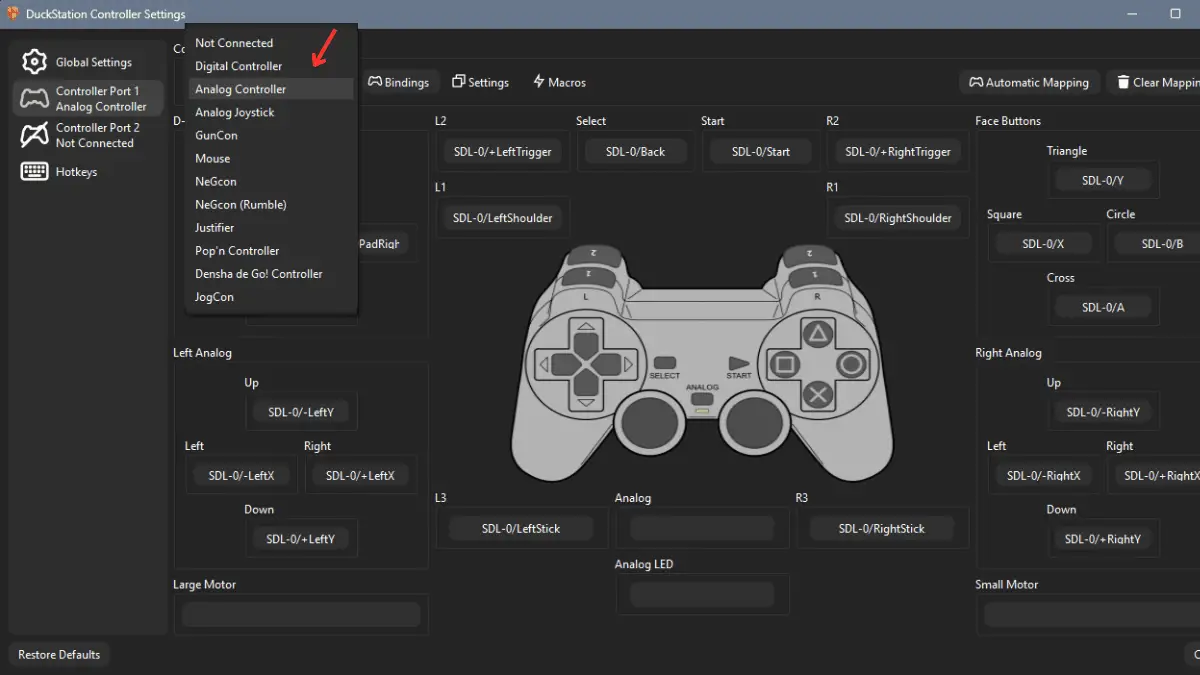
- Leave Controller Type on Analog Controller for normal use. That is DuckStation’s current Port 1 default.
- Click Automatic Mapping and choose your connected controller when DuckStation asks which device to map.
- Launch a game and test the D-pad, face buttons, shoulder buttons, sticks, Start, and Select.
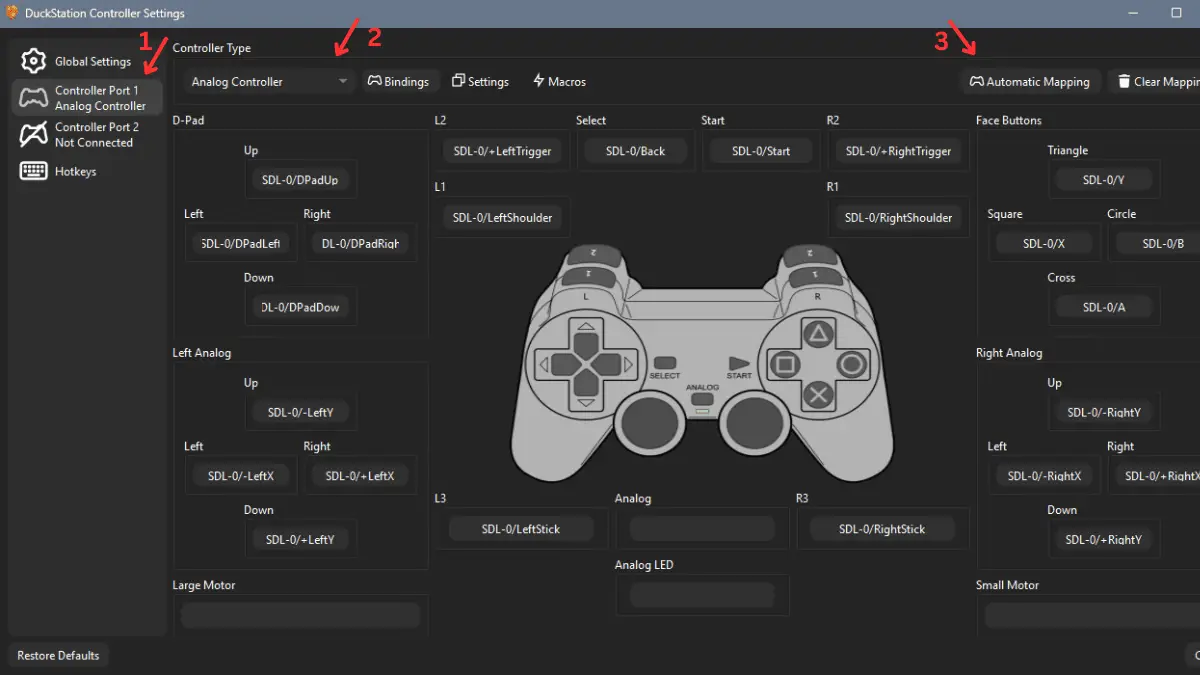
DuckStation’s own documentation says Automatic Mapping handles the majority of controllers. You do not have to manually fill every binding unless your particular controller has an unusual mapping.
Analog vs. Digital Controller: You Usually Do Not Need to Keep Switching
This is the biggest correction from the original version of this guide.
I used to tell readers that leaving DuckStation on Analog Controller could make a large chunk of early PS1 games ignore the pad, and that older games should be given permanent Digital Controller overrides. Current DuckStation is smarter than that.
Controller Port 1 now defaults to Analog Controller. That emulates a DualShock-style pad, but DuckStation’s Analog Controller starts in digital mode and only automatically enables analog mode when its game database says the title supports it. DuckStation’s compatibility code even treats an Analog Controller as acceptable for a digital-only game as long as the pad is operating in digital mode.
There is another useful default hiding underneath that: Use Left Analog for D-Pad in Digital Mode is enabled. So when an old game is being played in digital mode, you can still use the left stick to generate D-pad input if you prefer.
That means I would leave Analog Controller as the global setting in 2026. Switch the emulated controller type to Digital Controller only if a specific game complains about the controller, DuckStation warns that the selected controller type is unsupported, or you are deliberately recreating the original digital-pad experience.
Do not use a game’s release year as the rule. Some later PS1 games remained digital-only, while some games around the Dual Analog/DualShock transition supported analog input. DuckStation’s current game database is a better compatibility source than a blanket “before 1998 = Digital” list.
Xbox Controller Setup
Xbox 360, Xbox One, and Xbox Series-style controllers are straightforward on Windows. DuckStation supports them through its controller backends, and SDL is the preferred path for normal users.
- Connect the controller and confirm Windows sees it.
- Open Settings → Controllers → Global Settings.
- Make sure SDL is enabled.
- Open Controller Port 1 and run Automatic Mapping.
- Leave Controller Type on Analog Controller.
One slightly confusing detail: DuckStation also exposes a separate XInput Source option, but the current UI says that source should only be used when you are using an XInput wrapper library. You do not need to turn it on just because your physical controller happens to be an Xbox pad.
PS4 and PS5 Controller Setup: DualShock 4 and DualSense
DuckStation supports DualShock 4 and DualSense controllers directly through SDL, so DS4Windows is not required for normal DuckStation use.
- Connect the controller over USB or pair it with Windows over Bluetooth.
- Open Settings → Controllers → Global Settings.
- Leave Enable SDL Input Source checked.
- Go to Controller Port 1 and run Automatic Mapping.
- If you are using Bluetooth and want rumble/LED features, enable DualShock 4 / DualSense Enhanced Mode (Bluetooth Only).
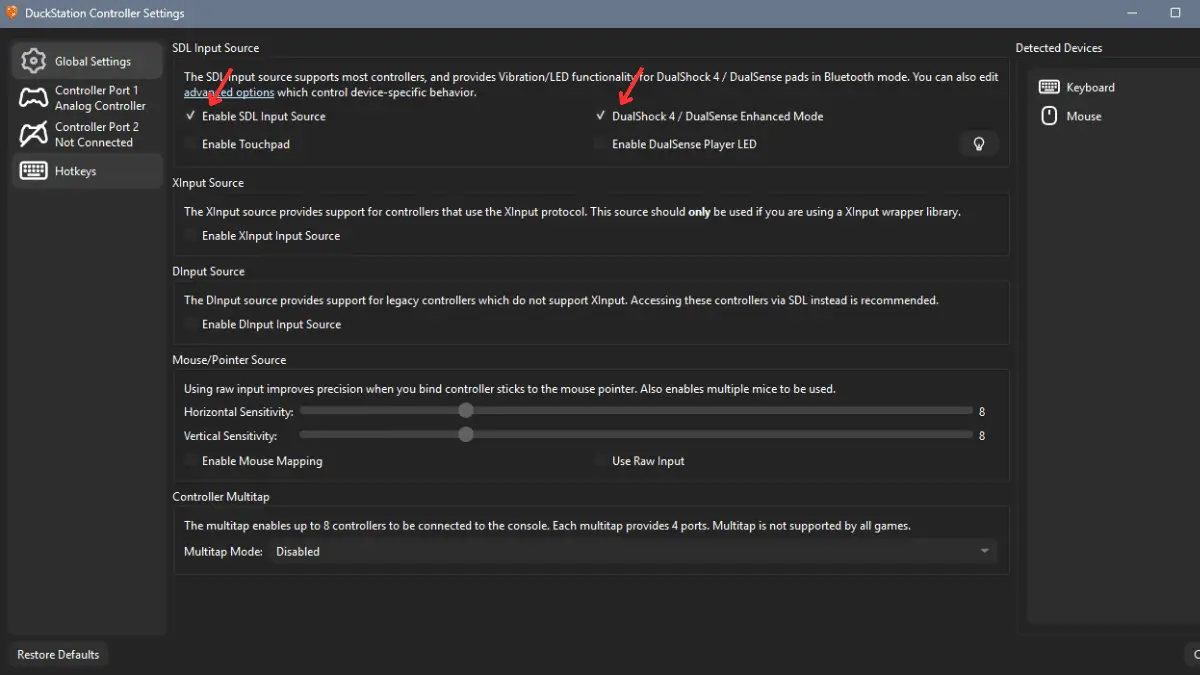
That last point matters. The old guide told everyone to enable Enhanced Mode. DuckStation now labels it Bluetooth Only and says it is not required for wired connections. It can also make the controller unavailable to other applications until the pad is turned off and on again, so I would enable it only when you actually need the Bluetooth rumble/LED path.
Sony officially supports DualSense connections to Windows through USB and Bluetooth as well. If Windows itself is not seeing the controller, solve that connection problem before troubleshooting DuckStation.
Switch Pro, 8BitDo, Logitech, and Generic Controllers
Start with SDL here too. DuckStation ships with an SDL game-controller mapping database, and the project specifically recommends SDL for most controllers.
If a generic or older controller is visible in Windows but not through SDL, DirectInput is the fallback worth testing. DuckStation describes DirectInput as a legacy source and explicitly says accessing those controllers through SDL is preferable when possible.
For an 8BitDo Pro 2 on Windows, 8BitDo’s own instructions use X mode for its X-input connection. After Windows recognizes the controller, you can still leave DuckStation itself on SDL and run Automatic Mapping normally.
DuckStation Keyboard Controls
You do not need a controller at all. Another correction from the old article is that current DuckStation does have keyboard bindings by default. The setup wizard even describes the keyboard as the default mapping until you map an external controller.
| PS1 Input | Current Default Keyboard Binding |
|---|---|
| Left Stick | W / A / S / D |
| Right Stick | T / F / G / H |
| D-Pad | Arrow keys |
| Triangle / Square / Circle / Cross | I / J / L / K |
| L1 / R1 | Q / E |
| L2 / R2 | 1 / 3 |
| L3 / R3 | 2 / 4 |
| Start | Enter |
| Select | Backspace |
You can change any of those under Controller Port 1. Keyboard works especially well for menu-heavy games and turn-based RPGs, but a real controller is the much better option for games that depend on analog movement, particularly Ape Escape.
Steam Input and Double Inputs
The old version of this article blamed Steam Input for almost every weird controller symptom. That was too aggressive.
Steam Input can absolutely remap a controller, particularly when DuckStation is launched through Steam as a non-Steam game or a Steam controller configuration is active. Valve also designed Steam Input and SDL to cooperate specifically to avoid duplicate input in supported setups. So Steam being open does not automatically mean Steam is hijacking DuckStation.
If you get double inputs, wrong buttons, or a stick controlling the mouse, test one layer at a time:
- Close controller-remapping tools such as DS4Windows and test DuckStation’s native SDL support by itself.
- If DuckStation is added to Steam, temporarily disable Steam Input for that shortcut and test again.
- Make sure DuckStation is seeing only the physical controller you actually intend to use.
- If you deliberately use software that creates a virtual controller, make sure the physical and virtual devices are not both reaching DuckStation at the same time.
If you intentionally need a virtual-controller setup, a device-hiding tool such as HidHide can prevent applications from seeing both devices. That is an advanced fix, though. For DualShock 4 and DualSense owners using DuckStation alone, native SDL support is the simpler starting point.
DuckStation Hotkeys
Hotkeys live under Settings → Controllers → Hotkeys. You can keep the current keyboard defaults or bind selected emulator actions to controller buttons/combinations.
| Action | Current Default |
|---|---|
| Open Pause Menu | Esc |
| Load State | F1 |
| Save State | F2 |
| Previous Save-State Slot | F3 |
| Next Save-State Slot | F4 |
| Screenshot | F10 |
| Toggle Fullscreen | F11 |
| Temporarily Disable Speed Limiter | Tab |
| Pause / Resume | Space |
I removed my old universal L3-based controller-hotkey layout. L3 and R3 are real DualShock inputs, and a custom combination that is perfect for one game can conflict with another. Bind controller hotkeys if they make your setup nicer, but choose combinations around the games you actually play.
Fast-forward and rewind are worth setting up if you use them often. My DuckStation tips guide goes deeper into those quality-of-life features.
Per-Game Controller Settings and Input Profiles
Current DuckStation gives you two good ways to avoid changing global controls for one unusual game: Game Specific Configuration and reusable input profiles.
- Right-click the game in DuckStation’s game list and choose Properties.
- On the Summary page, find the controller/input configuration selector.
- Choose Game Specific Configuration or select an existing input profile.
- Edit the controller setup for that game.
The first time you create a game-specific controller configuration, current DuckStation copies your global controller setup into it. That is useful for lightgun games, NegCon/JogCon titles, special multiplayer layouts, or the rare game that needs a controller setting different from the rest of your library.
Two Players and Multitap Setup
For a normal two-player game, configure Controller Port 2 and Automatic Map the second physical controller to it.
For games that support PlayStation Multitap, DuckStation can expose up to 8 controller ports. Each emulated Multitap provides four ports, and DuckStation lets you enable one on Port 1, Port 2, or both.
Do not enable Multitap globally just because more ports sound better. DuckStation’s game database checks whether a title supports it and warns that enabling Multitap for an unsupported game can cause dropped controller inputs.
DuckStation Controller Troubleshooting
Controller Not Detected
First verify that Windows itself sees the device. Then check Settings → Controllers → Global Settings → Enable SDL Input Source and run Automatic Mapping again. Try USB if Bluetooth is failing. For an old controller that Windows sees but SDL does not, test DirectInput as a legacy fallback.
Buttons Work in DuckStation but Not in the Game
Do not automatically assume “old game = switch to Digital Controller.” Current DuckStation’s Analog Controller can operate in digital mode and its game database knows the supported controller types for many games. Look for an on-screen unsupported-controller warning first. If the game still refuses input, then test Digital Controller for that title.
Every Button Press Happens Twice
Look for duplicate input layers. Close DS4Windows or other virtual-controller software, test DuckStation’s SDL path alone, and disable Steam Input for a DuckStation Steam shortcut if you use one. The goal is to make sure one physical press reaches DuckStation once.
Analog Stick Drift
DuckStation’s current Analog Controller deadzone defaults to 0%. If your physical stick drifts, raise the deadzone only enough to stop unwanted movement. Start small rather than jumping straight to a giant deadzone that makes precise movement feel mushy.
No Rumble on DualShock 4 or DualSense
Make sure the emulated controller is Analog Controller and the game itself supports rumble. For a Sony pad over Bluetooth, enable DualShock 4 / DualSense Enhanced Mode. For a wired controller, DuckStation says Enhanced Mode is not required.
Wireless Inputs Drop or Arrive Late
Test the exact same controller over USB first. If wired input is clean, the problem is in the wireless path rather than DuckStation’s button mapping. Move the Bluetooth adapter away from interference, update the controller firmware where applicable, and avoid diagnosing wireless trouble through three remapping programs at once.
Input Feels Delayed
Controller mapping is only one part of latency. Display sync, VSync, frame pacing, Bluetooth, and the game itself can all contribute. DuckStation does offer Runahead, but the emulator labels it as having very high system requirements, so I would not enable it as the first fix for every controller. My DuckStation stuttering guide covers frame pacing and VSync separately.
Best Controllers for DuckStation
If you already own a decent modern controller, use it. DuckStation does not require a special PS1 pad. These are only the options I would consider if you are already shopping for something new.
Xbox Wireless Controller: Easiest Windows Choice
Microsoft officially supports the current Xbox Wireless Controller on Windows 10/11 through Bluetooth, and DuckStation’s SDL mapping makes setup simple. The offset stick layout is not very PlayStation-like, but Windows compatibility is painless.
Check the Xbox Wireless Controller on Amazon.
DualSense: Best PlayStation-Style Layout
The DualSense keeps the symmetrical PlayStation layout and works on Windows through USB or Bluetooth. DuckStation supports it natively through SDL, with Bluetooth Enhanced Mode available when you need rumble/LED support.
Check the DualSense on Amazon.
8BitDo Pro 2: Best Multi-Device Option
The Pro 2 has the symmetrical layout I like for retro games and officially supports Windows, Android, SteamOS, Switch, and several Apple platforms. On Windows, 8BitDo’s own instructions use X mode. Once Windows sees it, DuckStation can map it normally.
Check the 8BitDo Pro 2 on Amazon.
DuckStation Controller FAQ
What controller type should I use in DuckStation?
Use Analog Controller globally. It is DuckStation’s current default for Port 1 and can operate in digital mode for games that do not support analog input. Use Digital Controller as a game-specific fallback when necessary.
Does DuckStation support Xbox controllers?
Yes. DuckStation supports SDL, XInput, and DirectInput-compatible controllers, and SDL is the preferred/default source for most modern controllers. Connect the Xbox controller, open Controller Port 1, and run Automatic Mapping.
Does DuckStation support PS4 and PS5 controllers?
Yes. DualShock 4 and DualSense work natively through SDL. For Bluetooth rumble and LED behavior, DuckStation may require its DualShock 4 / DualSense Enhanced Mode. That option is not required for wired connections.
Do I need DS4Windows for DuckStation?
No, not for normal DualShock 4 or DualSense use. DuckStation already supports those controllers through SDL. Third-party remapping software is only worth adding when you have a specific feature or compatibility problem that native support does not solve.
Does DuckStation have keyboard controls?
Yes. Current DuckStation includes default keyboard mappings for Controller 1 and separate default emulator hotkeys. You can change every binding under Settings → Controllers.
How many controllers does DuckStation support?
For normal two-player games, use Controller Ports 1 and 2. DuckStation’s Multitap emulation can expose up to eight controller ports when the game supports the PlayStation Multitap.
The Short Version
Use SDL, leave Port 1 on Analog Controller, and run Automatic Mapping. That is the correct starting point for most Windows controllers in current DuckStation.
For DualShock 4 or DualSense over Bluetooth, turn on Enhanced Mode only if you need the extra rumble/LED behavior. Keep Steam Input and virtual-controller tools out of the chain unless you actually need them. Use DirectInput only as a legacy fallback. And stop manually assigning every old PS1 game to Digital Controller: current DuckStation already has much better automatic compatibility logic than it did when that advice was common.
Once the controller works, my DuckStation settings guide covers the graphics and emulator options worth changing next.