I’ve been down the rabbit hole of trying to build the perfect retro gaming setup, and the perfect one is still the one you actually use. Not the one with the most systems. Not the one with the fanciest shaders. The one where you sit down, pick a game, and play.
This guide covers the decision-making part: what device to use, how much power you actually need, how to connect it to a TV, which accessories matter, and how to organize everything before your retro library turns into a digital junk drawer. If PS1 is your first stop, my DuckStation setup guide for Windows handles the emulator itself step by step.
Last checked: August 22, 2026. Device recommendations, DuckStation platform support, Raspberry Pi 5 capability, and internal guide links were rechecked for this WordPress migration.
Start simple. Expand only when the next thing solves a real problem.
Pick one system: PS1, GBA, SNES, Genesis, or whatever you actually want to play first
Install one emulator: DuckStation is my PS1 pick
Connect one controller: Xbox, PlayStation, 8BitDo, or another properly supported pad
Organize first: games, BIOS/firmware, saves, screenshots, backups
For the couch: HDMI to the TV → Game Mode on → fullscreen
Add later: shaders, achievements, frontends, more systems, cloud backups
Which Retro Gaming Setup Should You Choose?
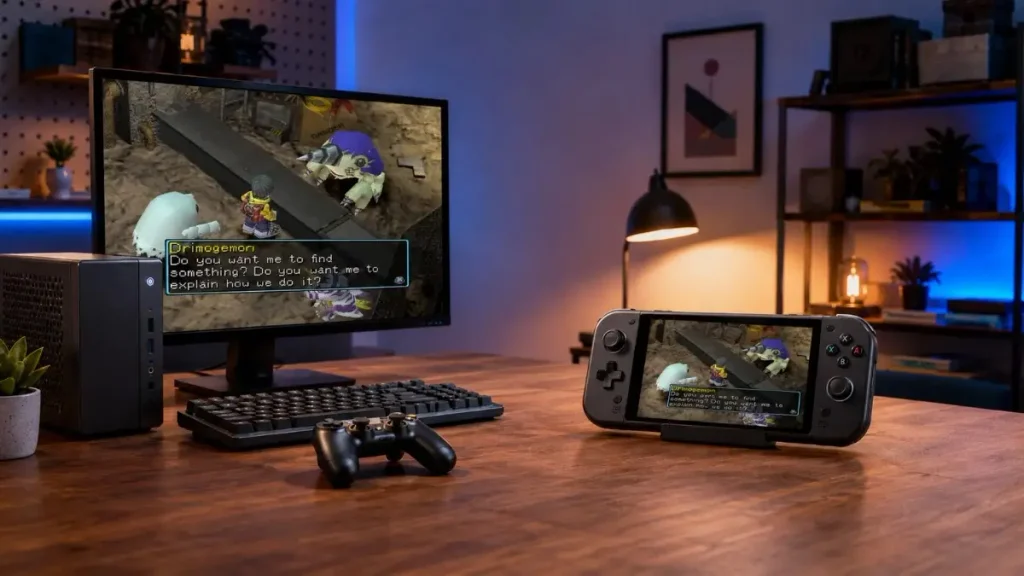
Before you buy anything, decide where you want to play. Desk, couch, handheld, tiny box behind the TV, or original console. Every route works, but the easiest setup is usually the one that fits the room and habits you already have.
My default beginner recommendation. You get easy file management, broad controller support, save states, fast forward, screenshots, recording, and the widest emulator selection without buying a dedicated retro device.
Same flexibility, but from the couch. HDMI, wireless controller, TV Game Mode, emulator fullscreen. If you want emulation to feel more like owning a little modern console, this is the route I would start with.
A good fit when you want a small machine that can stay attached to the TV. Even modest current hardware is far beyond what PS1, SNES, Genesis, and GBA emulation needs. PS2, GameCube, Wii, and heavier upscaling depend much more on the exact CPU, GPU, emulator, and game.
More capable than the older version of this guide gave it credit for. Raspberry Pi says the Pi 5 can handle systems through PlayStation 1, Saturn, and Dreamcast well, with some sixth-generation emulation also possible. It is a great tiny retro box if you enjoy the project side of the hobby. A Windows PC is still easier if you want the full desktop workflow, recording, and DuckStation’s standard PC interface.
Excellent if you want one retro library that travels with you and can still dock to a TV at home. If handheld PS1 is the goal, I have a separate retro handheld guide for PS1 instead of turning this article into a shopping catalog.
Real console, real controller, real disc. It is still fantastic, but old drives fail and modern TVs do not always treat 240p analog video kindly. If this is the route you want, read my best way to play PS1 games in 2026 guide before buying a random HDMI converter.
What Kind of PC Do You Need for Retro Gaming?
For classic systems, much less than people assume. DuckStation’s current requirements are intentionally modest: it wants a reasonably modern CPU and a GPU with support for common graphics APIs such as OpenGL 3.1, Direct3D 11-class hardware, or Vulkan 1.0. The project basically describes that as hardware from roughly the last decade.
That does not mean every emulator for every later console will run perfectly on every old laptop. PS1, SNES, Genesis, and GBA are light targets. PS2, GameCube, Wii, higher internal resolutions, texture packs, and newer systems can demand much more. Start with the computer you already own, test the systems you actually care about, and upgrade only when a real performance problem appears.
Playing Retro Games on a TV from the Couch
Connect the PC, laptop, mini PC, handheld dock, or Raspberry Pi to the TV over HDMI and use a wireless controller. You keep the modern conveniences of emulation without giving up the console-on-the-couch feeling.
Retro Gaming Accessories You Actually Need
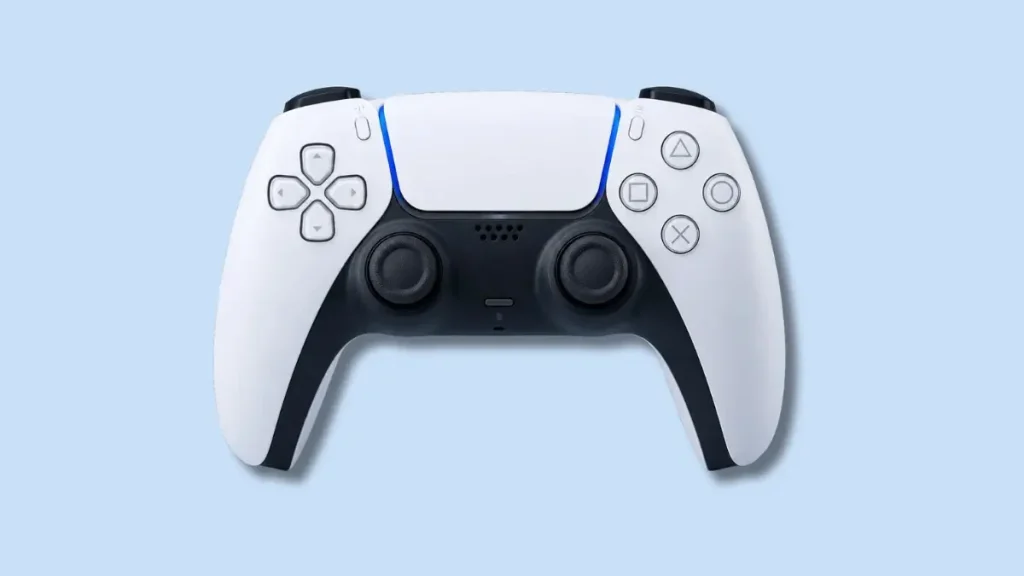
You do not need a giant accessory pile. A controller, enough storage for the systems you care about, and the cable or dock required for your display are the useful parts. Everything else earns its place later.
Controller
Xbox controllers are straightforward on Windows because XInput support is everywhere. DualShock 4 and DualSense also work well, and their symmetrical layout feels natural with PlayStation games. 8BitDo makes sense if you move between several devices. My DuckStation controller setup guide covers mapping and troubleshooting in detail.
Storage
An external SSD is convenient if you want the library portable or separate from your main drive, but do not buy storage by vibes. Cartridge-era libraries are tiny compared with disc-based systems. Figure out which systems you are actually keeping before buying a giant drive.
HDMI, Dock, and USB Hub
HDMI or a dock gets the machine onto the TV. A USB hub is useful if a small laptop, handheld, or mini PC runs out of ports once you connect storage, a controller dongle, and a keyboard. That is enough to start.
How to Organize Your Retro Gaming Folders
Do this before you install six emulators. Moving to a new computer and discovering that the games made it over but the saves did not is a tiny digital tragedy.
Emulators
Games
PlayStation 1
Game Boy Advance
Super Nintendo
Sega Genesis
BIOS / Firmware
Saves
Screenshots
Backups
For multi-disc games, keeping each game together in its own folder makes scanning and future moves easier. The exact structure matters less than being consistent and knowing which folders actually contain irreplaceable save data.
Start With One System First
Do not try to build the museum in one night. PS1 becomes PS2, then Dreamcast, then GameCube, then suddenly you are configuring arcade cores at 1:30 AM and have played absolutely nothing.
Pick one system, install its emulator, connect the controller, test normal saves, make a backup, and actually play a game. If you are leaning toward PlayStation, my beginner guide to playing PS1 games in 2026 compares original hardware, modern consoles, and emulation before you commit to one route.
Why I Recommend DuckStation as Your First PS1 Emulator
DuckStation is my first recommendation for PS1 emulation because it combines accuracy with a beginner-friendly frontend and modern features: controller mapping, memory-card management, save states, upscaling, PGXP geometry correction, fast forward, cheats, RetroAchievements, and a TV-friendly fullscreen interface.
Current official builds are available for Windows, Linux, macOS, and Android. If you want to start now, use my fast DuckStation Windows setup guide. On a phone, use my DuckStation Android setup guide. Once it works, my best DuckStation settings article is the next stop.
Beginner Retro Gaming Mistakes to Avoid
One working system is better than six half-configured ones. Finish one, play it, then expand.
Future-you will absolutely resent present-you for dumping everything into Downloads and promising to sort it later.
Back up the data you cannot recreate. A game can be reinstalled. A forty-hour save file cannot be reconstructed with positive thinking.
If something breaks after resolution, PGXP, shaders, widescreen, and latency tweaks all changed together, you have no clean way to know which setting caused it. Change one thing, test, continue.
Start with the controller and screen you already have. Buy a different controller, scaler, SSD, or frontend only when it fixes a real annoyance.
What to Add Later
Once the basic setup disappears into the background and you are actually playing, then add the toys. CRT shaders, RetroAchievements, cloud backups, frontends such as Playnite or LaunchBox, more systems, wireless controllers, or a dedicated handheld can all be great. The order does not matter. Add the thing that solves the next problem you actually have.
Retro Gaming Setup FAQ
What is the best PS1 emulator for PC?
DuckStation is my pick for most people because it combines strong compatibility, active development, a clean interface, modern rendering features, save states, controller support, and memory-card tools. My Windows setup guide covers the whole process.
Do I need a powerful PC for retro gaming?
Not for most classic systems. PS1, SNES, Genesis, GBA, and similar targets are easy workloads for modern hardware. Later systems and high-resolution enhancements can require substantially more power, so the exact answer depends on what you want to emulate.
Can I play retro games on a modern TV?
Yes. For emulation, HDMI plus Game Mode and a wireless controller is the simple route. Original analog consoles are a different problem because modern TVs can handle their low-resolution signals poorly, which is where a proper scaler can matter.
Is a Raspberry Pi good for retro gaming?
Yes. Raspberry Pi 5 is a capable dedicated retro machine. Raspberry Pi’s own current guidance says even the 1 GB Pi 5 has enough memory for emulation through systems including PlayStation 1, Saturn, and Dreamcast. A Windows PC is still easier if you want a general-purpose desktop, recording workflow, or the standard DuckStation PC interface.
What is the best controller for retro gaming on PC?
There is no universal winner. Xbox is straightforward on Windows, DualSense and DualShock 4 feel natural for PlayStation games, and 8BitDo is useful across multiple platforms. Pick the layout you actually like holding. My controller guide handles the setup side.
Can I play PS1 games on my phone?
Yes. DuckStation currently has an official Android build, including a Google Play release. You still need your own BIOS image and game backups. My Android setup guide walks through it.
Is a mini PC good for retro gaming?
Yes, especially for a permanent TV setup, but buy based on the hardest system you want to emulate rather than the word ‘retro.’ Almost any sensible current mini PC is overqualified for SNES and PS1. PS2, GameCube, Wii, and newer systems deserve model-specific performance research.
What system should I start with?
The one whose games you are most likely to play tonight. My personal pick is PS1 because the library is enormous and DuckStation is easy to get running. If you are a 2D person, SNES or GBA can be an even cleaner first project.
What to Read Next
If you are starting with PlayStation, these pages form the next layer of the setup instead of making this one article carry the entire emulator encyclopedia.
DuckStation Setup Guide 2026 — Windows download, BIOS, game folders, controller, graphics, memory cards, hotkeys, and troubleshooting.
DuckStation Android Setup Guide — the phone version, from file prep through the first game.
DuckStation Controller Setup Guide — Xbox, PlayStation, 8BitDo, mapping, double inputs, and hotkeys.
Best DuckStation Settings for PS1 — the deeper settings pass after the emulator is already working.
Fix DuckStation Stuttering — use this when performance is the thing ruining the party.
The Short Version
One device, one controller, one emulator, one organized folder.
If you want the couch feeling, connect it to your TV. If you want a portable setup, use a handheld. If PS1 is your first system, DuckStation is still where I would start.
The setup is finished when you stop thinking about the setup.
Reference note: DuckStation platform support and baseline hardware requirements were rechecked against the official DuckStation documentation. Raspberry Pi 5 emulation capability was rechecked against Raspberry Pi’s current guidance.