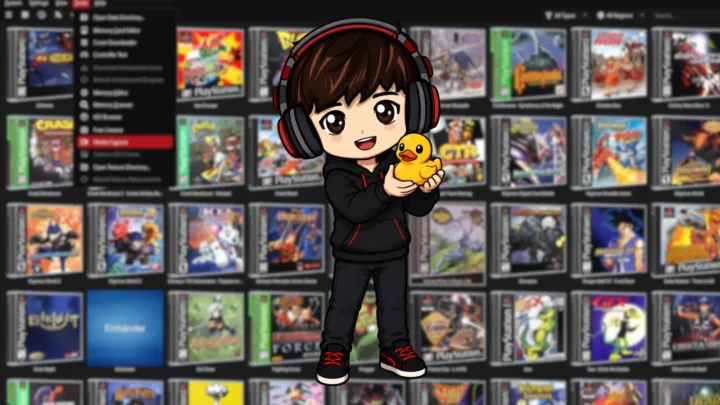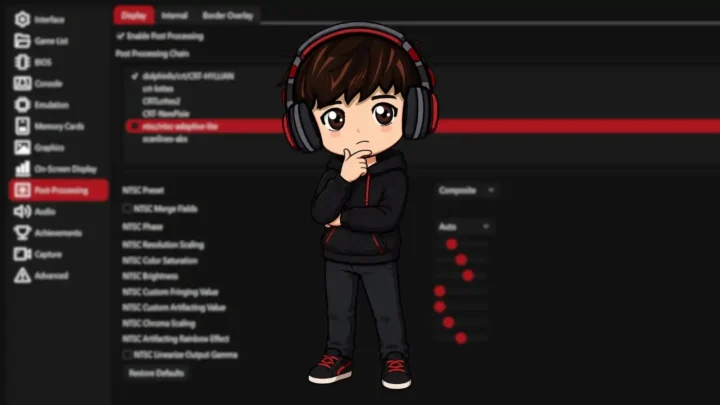
This DuckStation setup takes about ten minutes, and the first-run wizard handles most of it. You need a BIOS image dumped from your own PlayStation hardware, backups of the PS1 games you own, and a controller if you do not want to play on keyboard.
DuckStation is the PS1 emulator I recommend first on Windows in 2026. It is actively maintained, aims for high accuracy without sacrificing performance, and gives you the modern stuff I actually care about: upscaling, PGXP geometry correction, save states, rewind, fast forward, automatic memory cards, controller mapping, cover art, and RetroAchievements.
This guide is for Windows users who want to go from download to playing without turning the settings menu into a second hobby. If you are setting up an entire retro gaming machine rather than only PS1, start with my retro gaming setup guide. On a phone instead? Use my DuckStation Android setup guide.
Last checked: August 22, 2026. I rechecked this guide against DuckStation’s current Windows README, setup wizard, settings UI, and tooltips. DuckStation uses rolling releases, so menu names can still move between builds.
The beginner route, start to finish.
Install: run installer → launch DuckStation
BIOS: point the wizard at your BIOS folder → confirm detection
Games: add your PS1 games folder → scan recursively
Controller: Port 1 → Automatic Mapping → select your controller
Graphics: start around 3x resolution → PGXP if you want geometry correction → leave the rest sensible/default
Test: double-click a game → if it boots, your core setup works
Latency: VSync off by default → Optimal Frame Pacing on → Reduce Input Latency optional
Memory cards: Separate Card Per Game → Single Card for Multi-Disc Games on
Extras: bind fast forward/rewind if wanted → add covers → sign into RetroAchievements if wanted
What You Need: BIOS, Game Files, and Folders
Have two things ready before you open DuckStation.
A PlayStation BIOS image. DuckStation requires a PS1 or PS2 BIOS image to start emulation. The project says BIOS images from different hardware versions and regions can work, although matching the BIOS region to the game is still the safer choice because region mismatches can cause compatibility problems. Dump the BIOS from your own hardware.
Your PS1 disc backups. For a clean library, I recommend CHD when possible, or a proper BIN/CUE dump. DuckStation also supports direct CDs, single-track ECM, MDS/MDF, CCD, and unencrypted PBP. The important part with multi-track games is preserving every track. A single-track image can lose separate CD-audio tracks that were present on the original disc.
bios and games folders. The location does not matter. What matters is knowing where they are when the wizard asks.How to Download and Install DuckStation on Windows
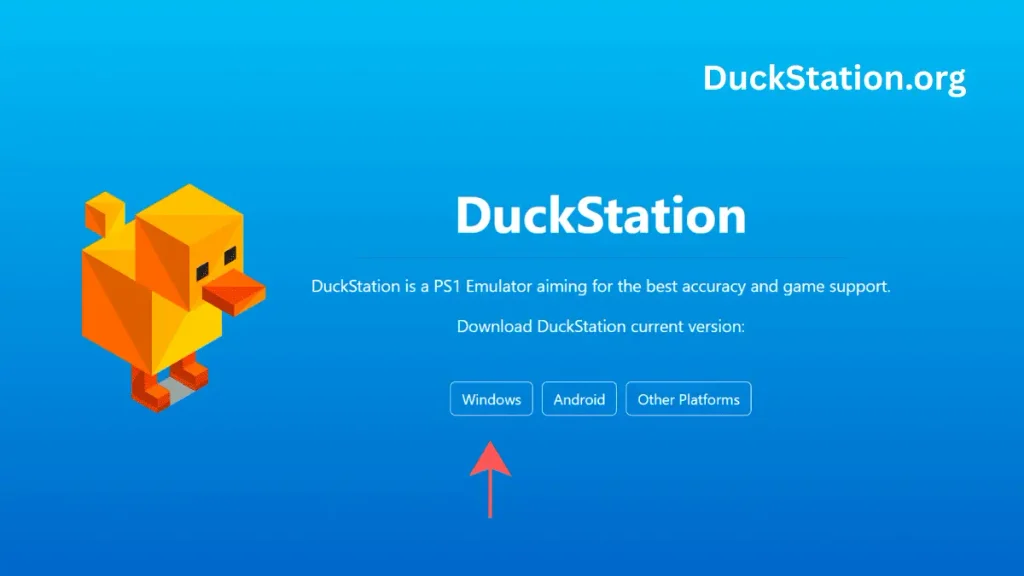
Go to duckstation.org and choose the Windows installer. The official project currently recommends the installer for most Windows users. DuckStation supports Windows 10 and Windows 11, version 1809 or newer.
If you specifically want the ZIP build, extract it into its own folder. One detail most old guides miss: if you want the ZIP build to keep its user data beside the executable as a truly portable setup, create an empty file named portable.txt in the DuckStation program folder.
DuckStation Setup Wizard: BIOS, Games, Controller, and Graphics
The first launch opens DuckStation’s setup wizard. Current builds walk through Language, BIOS Image, Game Directories, Controller Setup, Graphics Setup, RetroAchievements, Interface Selection, View Selection, and then completion.
Language and Theme
Pick your language and theme. Leave automatic updates enabled unless you have a specific reason not to. DuckStation changes frequently enough that keeping it current is worth it.
BIOS Setup and Region Matching
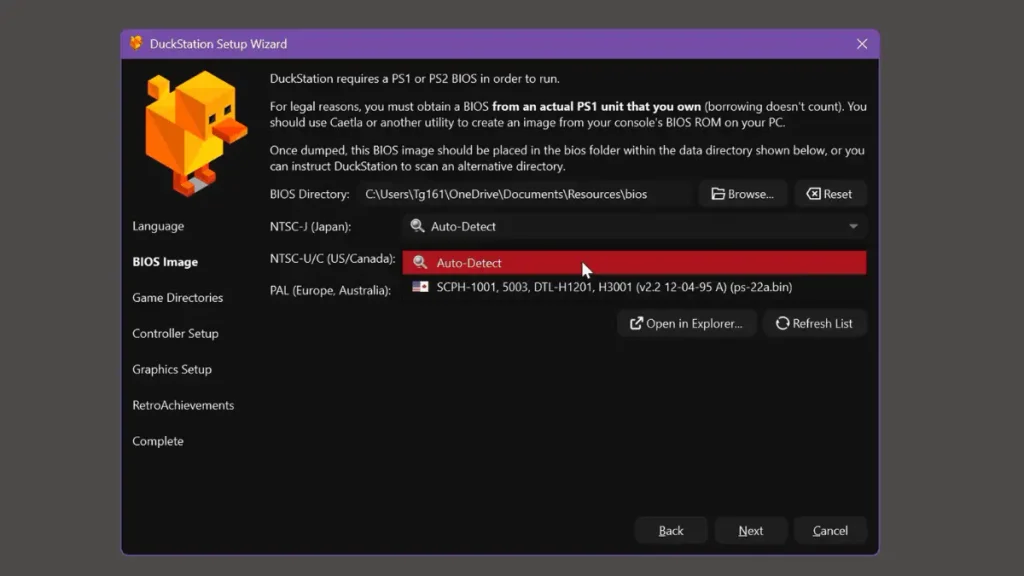
Point DuckStation at the folder containing your BIOS image, then check the NTSC-J, NTSC-U/C, and PAL rows to confirm it was detected. You do not need to obsess over one exact BIOS revision. DuckStation’s current documentation says BIOS images from different PlayStation hardware versions and regions can work.
Add Your Game Directory
Add your PS1 games folder and enable recursive scanning if your games are organized in subfolders. DuckStation will build the game list from that directory. If you add games later and they do not appear immediately, rescan the game list.
Controller Setup and Automatic Mapping
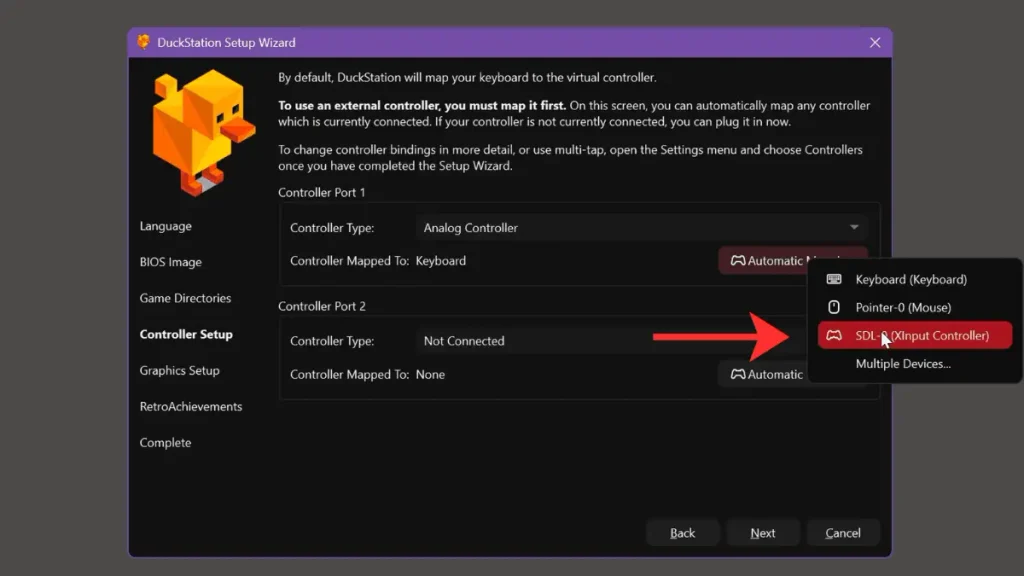
For Port 1, choose the controller type you want and use Automatic Mapping to map your connected controller. Leave Port 2 disconnected unless you actually need a second player. If you want a deeper controller walkthrough, including Xbox, PlayStation, 8BitDo, keyboard, and troubleshooting, use my DuckStation controller setup guide.
Steam users: if you get double inputs, do not let Steam Input and DuckStation’s own controller path both fight over the same pad.
Finish the Wizard
The wizard now also includes RetroAchievements plus interface and game-list view choices. You can skip RetroAchievements during setup and sign in later. Pick whichever interface and library view you prefer. None of that changes game compatibility.
Best DuckStation Graphics Settings for a Fast Setup
For this beginner setup, I would change only a few things. If you want the deep version with every important graphics and PGXP option explained, use my best DuckStation settings guide.
Internal Resolution
Higher internal resolution makes 3D polygons and lines much sharper. Around 3x is a reasonable beginner starting point on a modern PC. Drop it if a game slows down, or raise it if your GPU has room. DuckStation itself notes that higher scales need more GPU power.
Aspect Ratio
I leave the game at its native shape rather than stretching everything to fill a widescreen monitor. DuckStation has widescreen rendering, but its own tooltip warns that the feature is not compatible with every game.
PGXP Geometry Correction
PGXP reduces the wobbly polygons and warping textures associated with PS1 3D graphics. DuckStation’s setup wizard specifically calls internal-resolution increases and PGXP major visual upgrades, but the full settings tooltip also warns that PGXP is not compatible with every game. Turn it off for a problem game instead of assuming the emulator is broken.
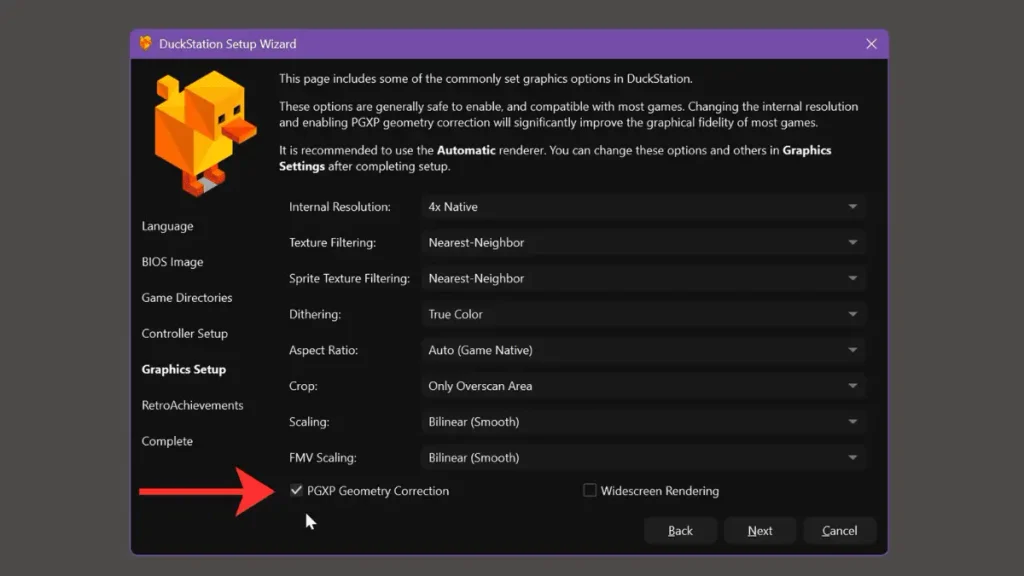
For the rest of the wizard, keep things simple. Automatic renderer is a good starting point, Threaded Rendering is enabled by default, and I would not start flipping advanced switches before you have tested a game. The defaults are much better than old emulator folklore would have you believe.
Test Your First PS1 Game
Double-click a game in your library. If it boots, your BIOS, game path, and basic controller setup are working. Play for a few minutes before changing anything else. It is much easier to diagnose one change at a time than to throw twelve tweaks at the emulator and then wonder which one broke Silent Hill.
DuckStation Settings for Performance and Input Lag
Once a game boots, there are a few settings worth understanding. The important change from older versions of this guide is that I am no longer telling everyone to blindly turn every latency feature on.
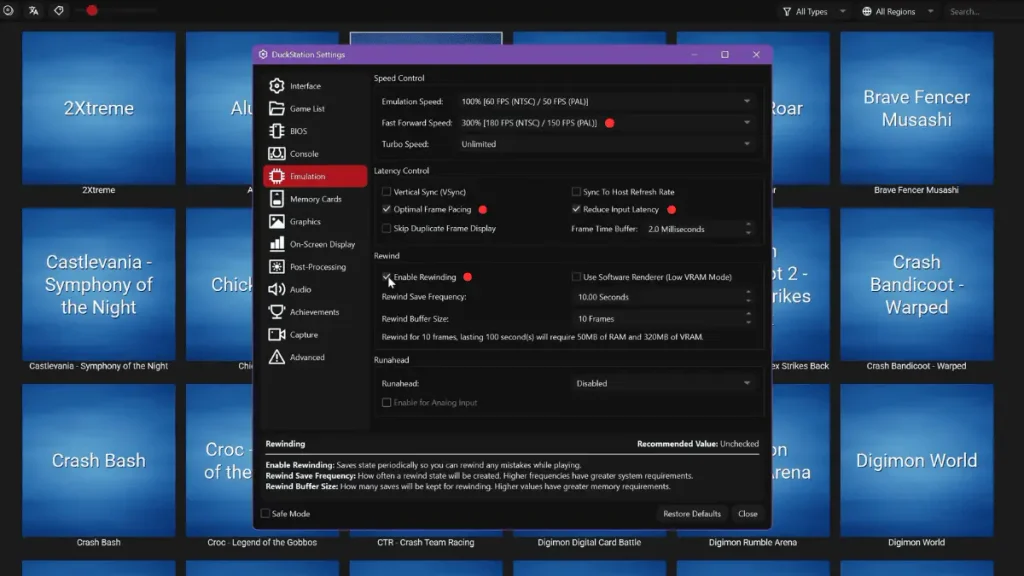
VSync and Optimal Frame Pacing
DuckStation says VSync can make animation smoother but can also increase input lag. If you use G-Sync or FreeSync, DuckStation specifically points you toward Optimal Frame Pacing instead. If you have visible tearing and no better display-side solution, VSync is still there.
Current DuckStation builds use Optimal Frame Pacing to keep console frames presented consistently, and it is now the normal starting point. If your PC cannot maintain full speed or you get audio glitches, DuckStation recommends trying it off.
Reduce Input Latency
This is not a universal “turn it on” setting. DuckStation leaves it unchecked by default because it can cause dropped frames on slower or inconsistent systems. If your game is already running perfectly and you care about shaving latency, test it. If stutter appears, turn it back off.
Rewind
Rewind is fantastic, but it is optional rather than part of the baseline setup. DuckStation periodically creates states for the rewind buffer, and higher frequency or a larger buffer costs more memory and system resources. It is also unavailable while RetroAchievements Hardcore Mode is active.
Renderer and Threaded Rendering
Leave the renderer on Automatic unless a specific game gives you a reason to change it. On a laptop, check that DuckStation is using the GPU you expect. Threaded Rendering is enabled by default and DuckStation describes it as a generally safe performance improvement.
Audio Backend
Cubeb is DuckStation’s normal audio backend and its tooltip describes it as the lowest-latency option. If Cubeb gives you trouble on your system, SDL is the fallback.
Memory Cards
DuckStation’s per-game title card is the sensible default. Keep Use Single Card For Multi-Disc Games enabled so one game’s discs share the same virtual card. Save states are convenient, but I still make normal in-game saves too.
DuckStation Hotkeys: Save States, Fast Forward, and Rewind
Open Settings → Controllers → Hotkeys. Current default keyboard bindings include F1 to load state, F2 to save state, F3 for the previous save-state slot, F4 for the next slot, and Tab to temporarily disable the speed limiter.
Tab works as the default temporary speed-limiter hotkey on keyboard. I also like fast forward on a controller button because grinding and long load screens become much easier to live with.
Bind rewind only if you enabled the rewind buffer in Emulation settings. Miss a jump, roll it back, pretend history was always this clean.
How to Download DuckStation Cover Art
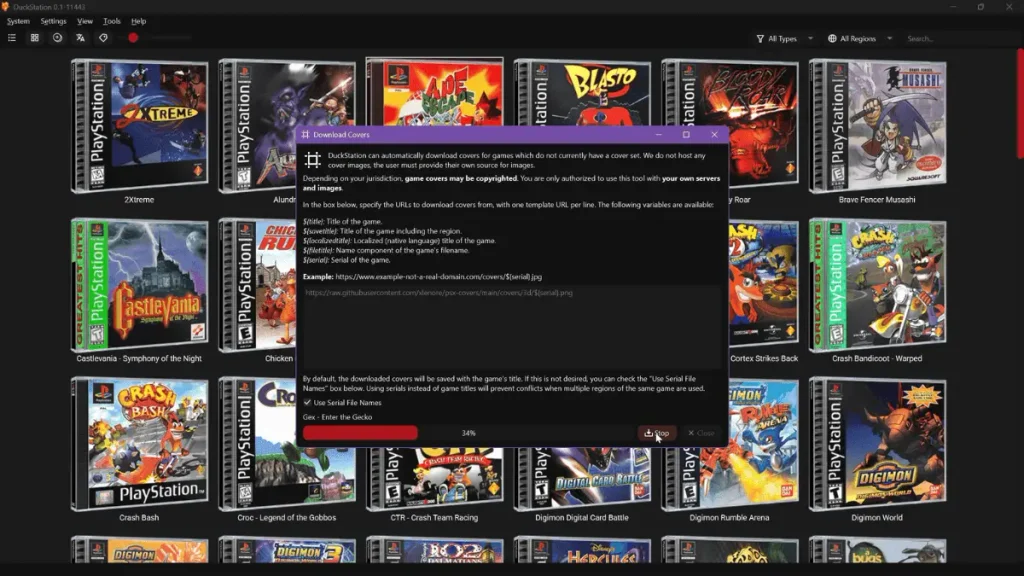
Open Tools → Cover Downloader. The community xlenore PSX cover repository still documents DuckStation’s cover downloader and these serial-based templates.
https://raw.githubusercontent.com/xlenore/psx-covers/main/covers/default/${serial}.jpg
3D covers:
https://raw.githubusercontent.com/xlenore/psx-covers/main/covers/3d/${serial}.png
Paste the template you want into Cover Downloader, use serial file names, start the download, then switch the game library to grid view if you want the full box-art wall.
How to Enable RetroAchievements in DuckStation
DuckStation has RetroAchievements built in. Create an account at RetroAchievements, then open Settings → Achievements and sign in.
DuckStation Troubleshooting: Common Problems and Fixes
If performance is the problem rather than setup, my DuckStation stuttering fix guide goes much deeper. For quick problems, start here.
No BIOS image found
Open Tools → Open Data Directory and check the BIOS location, or return to BIOS settings and point DuckStation at the folder containing your BIOS image. Confirm the region rows actually detect it.
SmartScreen blocks the installer
First verify that you downloaded it from duckstation.org or the official DuckStation GitHub release. If you did, use More info → Run anyway. If you did not, delete the file instead of bypassing the warning.
Missing vcruntime140_1.dll
Install Microsoft’s current Visual C++ x64 Runtime and reopen DuckStation.
Double controller inputs
Steam Input and DuckStation’s own controller input may both be active. Use one input path instead of two.
Game runs but CD music is missing
Check the disc dump. Some PS1 games use separate CD-audio tracks, and a single-track image cannot preserve those extra tracks. Re-rip your own disc to a proper BIN/CUE or CHD that contains the full disc layout.
Stuttering or dropped frames
If you enabled Reduce Input Latency, turn that off first. Then lower Internal Resolution. If needed, try another renderer. DuckStation’s own tooltip warns that Reduce Input Latency can cause dropped frames on slower or inconsistent systems.
Graphics broke after I changed settings
Use Safe Mode. DuckStation describes Safe Mode as disabling enhancements so the console can be simulated more accurately. If the problem disappears, re-enable your enhancements one at a time.
DuckStation Setup FAQ
Is DuckStation safe to download?
Use the official DuckStation site or its official GitHub releases. I would not download emulator installers from random mirrors. If SmartScreen appears on an official installer, verify the source before bypassing the warning.
Does DuckStation need a BIOS?
Yes. DuckStation requires a PS1 or PS2 BIOS image to start emulation. The project does not include one. DuckStation says different hardware versions and regions can work, although mismatched game and BIOS regions may create compatibility issues.
What game file formats does DuckStation support?
DuckStation’s current README lists direct CDs, BIN/CUE, MAME CHD, single-track ECM, MDS/MDF, CCD, and unencrypted PBP. For a beginner library, CHD is my favorite when you can create it from your own disc dump, while BIN/CUE is the straightforward choice when you want the disc layout kept explicit.
How do multi-disc PS1 games work in DuckStation?
DuckStation can merge multi-disc games in the game list and share memory cards between discs. Keep Use Single Card For Multi-Disc Games enabled when using per-game title cards. That way your save does not end up marooned on Disc 1 while the game asks for Disc 2.
Does DuckStation work with Xbox and PlayStation controllers?
Yes. DuckStation supports common SDL-compatible controllers and provides Automatic Mapping. For the fiddly cases, my controller setup guide covers them separately.
Where does DuckStation store memory cards and save states on Windows?
Current installations use DuckStation’s user directory, normally under AppData\Local\DuckStation on Windows. Older installs may still use Documents\DuckStation. Tools → Open Data Directory takes you to the active folder without making you hunt for it.
Can DuckStation play PS1 games in widescreen?
Yes, but widescreen rendering is an enhancement, not a universal compatibility switch. DuckStation warns that it may not work correctly in every game. I start in the game’s native aspect ratio and only use widescreen per game when I know it behaves.
Does DuckStation support cheats and GameShark codes?
Yes. DuckStation includes cheat support and ships with a community cheat and patch database. Its code still supports GameShark-type cheats, and the current settings UI separates patches from cheats.
What is PGXP in DuckStation?
PGXP is DuckStation’s geometry-precision system. In practical terms, Geometry Correction reduces the polygon wobble and texture warping that are common in PS1 3D games. It is one of DuckStation’s best visual upgrades, but disable it for a specific title if it causes a compatibility problem.
Can DuckStation make every PS1 game run at 60 FPS?
No. There is no universal 60 FPS switch that safely doubles every PS1 game’s frame rate. DuckStation’s community patch database does include game-specific frame-rate unlock patches, but those are patches for individual games and can change timing or behavior. Also, PS1 games did not all render at one fixed 30 FPS or 25 FPS rate, so the old blanket claim was too simple.
The Short Version
Download the official installer, follow the wizard, test a game before tweaking, and let DuckStation’s defaults do more of the work.
Start around 3x resolution if your PC can handle it. Use PGXP when you like the cleaner geometry. Leave Optimal Frame Pacing on, treat Reduce Input Latency and rewind as optional tools, and keep real memory-card saves alongside save states.
Once the basics are working, the next useful reads are my full DuckStation settings guide, controller setup guide, and stuttering fixes.
Reference note: DuckStation behavior, requirements, setup-wizard steps, and settings descriptions were rechecked against the project’s current official GitHub documentation and source on August 22, 2026.