If you just want the safest answer in current DuckStation, leave Renderer on Automatic. DuckStation itself uses Automatic as the default, and that is a better global recommendation in 2026 than forcing Vulkan on every modern PC.
If you want to choose manually, Vulkan is still an excellent option on modern Windows and Linux systems, Direct3D 11 and Direct3D 12 are valid Windows backends, Metal is the native choice on macOS, OpenGL remains useful when another hardware backend misbehaves, and Software is the compatibility/troubleshooting option.
Last checked: August 22, 2026. This guide reflects current desktop DuckStation builds and the renderer options exposed by the current project source.
Short version: Use Automatic unless you have a reason not to. If you are troubleshooting manually, Vulkan is a strong modern hardware choice, D3D11/D3D12 are Windows alternatives, Metal is for Mac, and Software is the compatibility fallback.
If you are still setting everything else up, my best DuckStation settings guide covers resolution, PGXP, filtering, and the other options that actually change how your games look.
Which DuckStation Renderer Should I Use?
| Your situation | Start with |
|---|---|
| Not sure / normal setup | Automatic |
| Modern Windows PC, manual choice | Vulkan, then D3D12 or D3D11 if needed |
| Windows driver or capture compatibility issue | Direct3D 11 or Direct3D 12 |
| Linux | Automatic or Vulkan |
| macOS | Metal |
| Hardware backend is glitching | Software as a diagnostic |
The old version of this guide opened with “Vulkan, set it and forget it.” That was too aggressive. Current DuckStation explicitly defaults to Automatic, so there is no good reason to tell every reader to override the emulator before they have a problem.
Where Is the Renderer Setting?
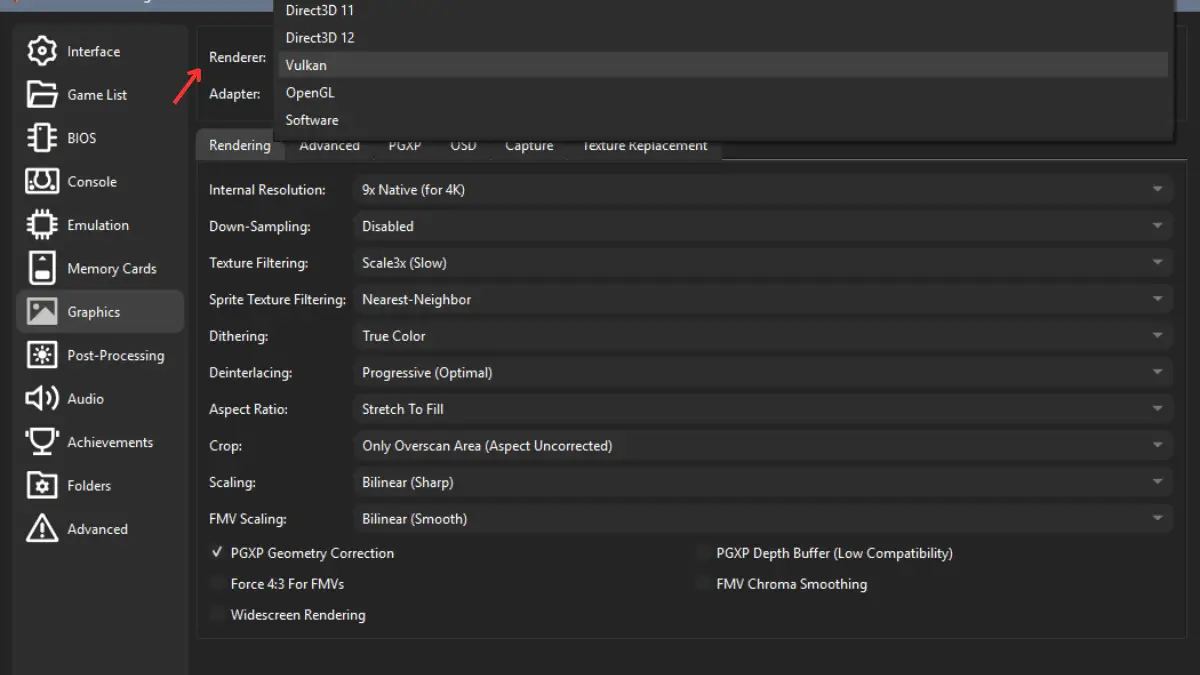
Open Settings → Graphics and look at the Rendering section. The Renderer dropdown selects the host graphics backend DuckStation uses to draw the emulated PlayStation GPU output.
Does Vulkan Look Better Than Direct3D or OpenGL?
Not inherently. Vulkan, Direct3D 11, Direct3D 12, OpenGL, and Metal are hardware backends. Choosing one does not automatically give you a sharper picture than another. The visual enhancements people usually care about, such as internal-resolution upscaling, texture filtering, True Color, PGXP, and post-processing, sit on top of the hardware renderer.
What can change between backends is performance, driver behavior, feature support, and compatibility on your particular GPU. That is why switching renderer can fix a black screen or graphical problem even though the renderer itself is not a “quality preset.”
This is DuckStation’s current default renderer setting. Leave it here unless you are troubleshooting, benchmarking, or have a specific backend preference.
A modern cross-platform hardware API and a strong manual choice on supported Windows and Linux GPUs. If it works properly on your system, there is usually no reason to avoid it.
A mature Windows hardware backend. It is a useful fallback when Vulkan or D3D12 has a driver, presentation, capture, or compatibility problem on a particular PC.
A fully supported Windows renderer in current DuckStation. The old article incorrectly treated it as mainly an Xbox backend. On desktop Windows it is a legitimate option alongside Vulkan and D3D11.
DuckStation’s native hardware renderer on macOS. If you are on a supported Mac build, Metal is the platform-native choice rather than trying to force a Windows/Linux recommendation onto macOS.
Still a supported hardware backend. I would not make it the first manual pick on a modern Windows gaming PC, but “last resort” is too harsh. Drivers and platform behavior can make it the useful choice on some systems.
Runs the emulated GPU through DuckStation’s software renderer. It offers the best compatibility, but it is the slowest renderer and does not provide the hardware-renderer enhancements.
When Should I Use the Software Renderer?
Use Software mainly as a compatibility test. If a game is broken under your hardware renderer and suddenly looks correct in Software, you have narrowed the problem down to the hardware-rendering path, an enhancement, or a driver/backend interaction.
- Use it to diagnose major graphical corruption.
- Use it when DuckStation’s compatibility settings force software rendering for a particular game.
- Use it to test whether an enhancement such as PGXP, upscaling, filtering, or True Color is involved.
- Do not assume it is “perfectly accurate.” DuckStation’s own UI describes it as offering the best compatibility, not magical perfection.
Current DuckStation also has a Software Renderer Readbacks option. That is different from switching the entire renderer to Software: it can run the software renderer in parallel for VRAM readbacks while you continue using a hardware renderer. DuckStation’s game database can force this automatically for games that need it.
My Game Looks Broken. What Should I Change First?
I would no longer keep a static list of games and tell everyone to flip specific PGXP or renderer settings globally. DuckStation’s compatibility database can automatically force software rendering, enable software readbacks, disable upscaling, disable specific PGXP features, or force PGXP CPU mode on games that need those changes.
1. Leave the renderer on Automatic first
If you manually forced Vulkan, D3D11, D3D12, or OpenGL, switch back to Automatic and retest.
2. Test with enhancements disabled
PGXP, high internal resolution, texture filtering, widescreen rendering, multisampling, and other enhancements can introduce game-specific rendering errors. If the base game is fine, re-enable enhancements one at a time.
3. Try Software as a diagnostic
If Software fixes the problem, that tells you the issue is tied to hardware rendering, a hardware-only enhancement, or the graphics-driver/backend path.
4. Try another hardware backend
On Windows, that means testing Vulkan, D3D12, and D3D11. On Linux, Vulkan and OpenGL are the main hardware choices. On macOS, stick with Metal unless you have a very specific reason to investigate further.
If the problem is stutter rather than broken graphics, use my DuckStation stuttering guide. If DuckStation itself is closing or failing to launch a game, the DuckStation crashing guide is the better troubleshooting path.
DuckStation Renderer FAQ
What is the best DuckStation renderer?
For most people, Automatic is the best setting because it is DuckStation’s current default and avoids forcing a backend unnecessarily. If you specifically want a manual modern hardware renderer, Vulkan is a strong choice on supported Windows and Linux systems.
Is Vulkan better than Direct3D 11 or Direct3D 12?
Not universally. Vulkan can perform very well on modern hardware, but driver and system behavior matter. D3D11 and D3D12 are both legitimate Windows renderers. If one backend gives you problems, trying another is reasonable.
Does Vulkan make PS1 games look better?
No. The renderer backend itself is not a visual-quality preset. Internal resolution, PGXP, texture filtering, dithering/True Color, downsampling, and post-processing are the settings that change the presentation more directly.
Should I use Software renderer all the time?
Usually no. Software offers the best compatibility but is slower and does not provide the hardware-renderer enhancements. It is most useful as a troubleshooting tool or when DuckStation applies it for compatibility.
The Short Version
Leave DuckStation on Automatic unless you have a reason to choose manually. Vulkan remains a strong modern option, D3D11 and D3D12 are both valid Windows alternatives, Metal is the native macOS backend, and Software is there when compatibility matters more than enhancements.
The renderer dropdown is not where I would spend most of my tweaking time. Once the backend is stable, internal resolution, PGXP, filtering, dithering, and post-processing have a much bigger effect on how your PS1 games actually look. My DuckStation settings guide covers those next.