I’ve been using DuckStation for years, and I still stumble across features that make me wonder how I missed them. Rewind can save me from replaying a section in Crash Bandicoot. Fast-forward makes Digimon World 3’s backtracking much easier to fit around adult life. Per-game settings stop one weird PS1 game from wrecking the setup I like everywhere else.
These are five DuckStation tips and hidden features I wish I had started using sooner. None of them are required to emulate PS1 games, but each one removes a little friction once the basic setup is already working.
If you are still at the download-and-BIOS stage, start with my DuckStation setup guide. If you want the full graphics/performance configuration, use my best DuckStation settings guide first.
Last checked: August 22, 2026. Rewind, fast-forward controls, Cover Downloader, per-game settings, and Media Capture were rechecked against DuckStation’s current desktop source and UI.
1. Rewind Your Mistakes
I used save states for years and somehow ignored rewind. Crash Bandicoot is where it finally clicked for me. Miss a jump, hold one button, roll the game backward, release it when you are safe, and try again.
DuckStation creates rewind states at intervals while you play. The Rewind Save Frequency controls how often a state is created, while Rewind Buffer Size controls how many are kept. DuckStation calculates the approximate rewind duration plus RAM and VRAM cost directly in the settings screen.
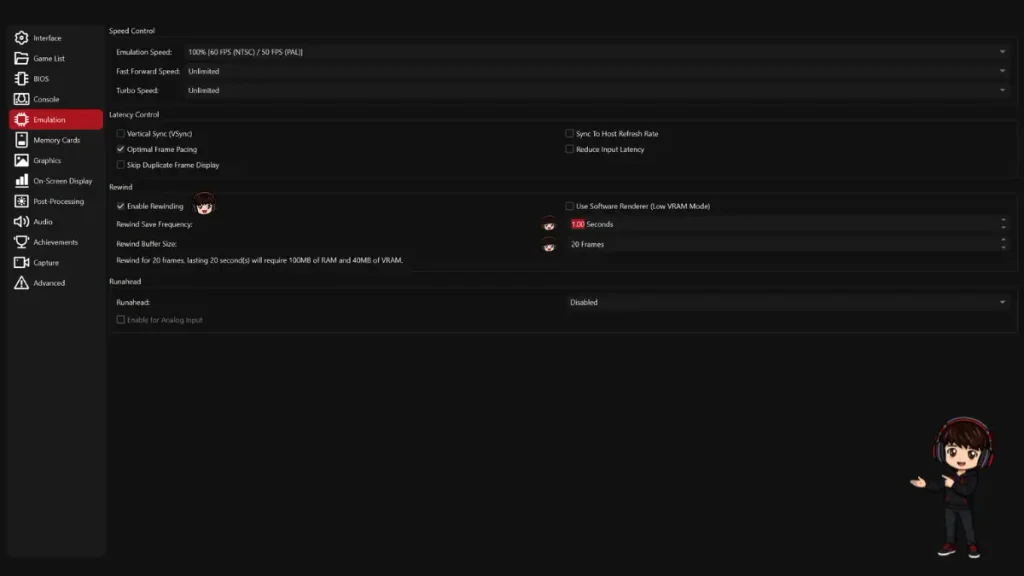
Enable: Enable Rewinding
Set: Rewind Save Frequency
Set: Rewind Buffer Size
Bind: Settings → Controllers → Hotkeys → Rewind
A one-second save frequency with a 20–30 state buffer gives roughly 20–30 seconds of history. It is enough for most platforming mistakes without going overboard on memory use.
If rewind starts using too much VRAM while you are upscaling, DuckStation has Use Software Renderer (Low VRAM Mode). Its current tooltip specifically says this prevents the extra VRAM use from rewind states and is especially useful when upscaling.
I bind rewind to a spare controller button. If your pad still needs sorting, my DuckStation controller setup guide covers mapping and hotkeys. If rewind itself causes hitching, work through my DuckStation stuttering fixes.
2. Set a Fixed Fast-Forward Speed
Most people discover the basic fast-forward hotkey quickly. The more useful feature is that DuckStation lets you set a specific fast-forward target and use either held or toggle hotkeys.
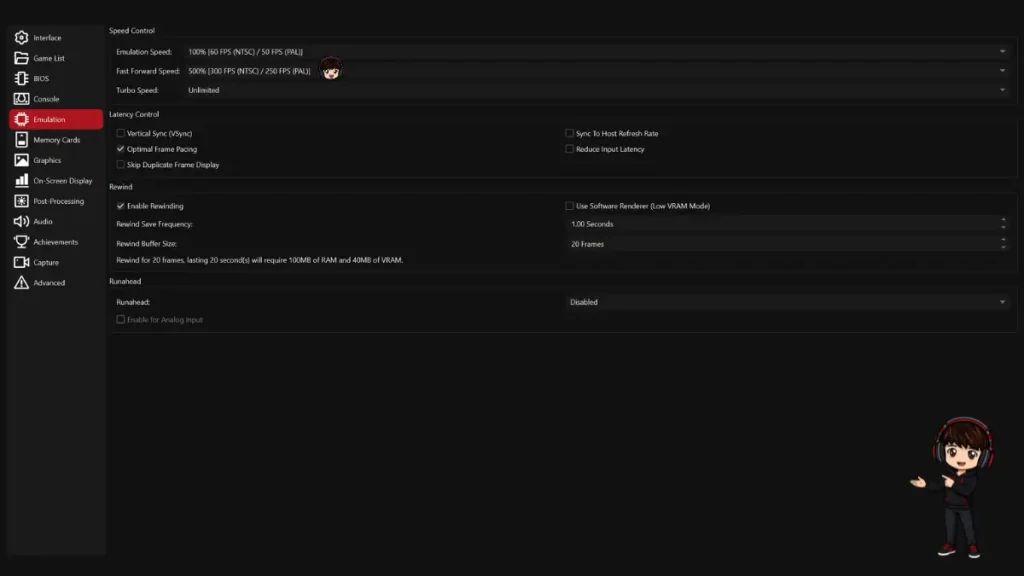
Choose: a target percentage or Unlimited
Bind: Settings → Controllers → Hotkeys → fast-forward held/toggle
For grinding and backtracking, I prefer a fixed target rather than unlimited. It is fast enough to erase dead time while still leaving menus somewhat controllable. DuckStation notes that a requested speed is only a target: if your hardware cannot reach it, the emulator simply runs as fast as it can.
Digimon World 3 is what made this permanent for me. I like the game. I do not need every random battle and cross-map walk to occupy the exact amount of real-world time the developers scheduled for me in 2002.
There are two related convenience switches under Settings → Console: Fast Forward Boot, which speeds the early loading process when Fast Boot is enabled, and Fast Forward Memory Card Access, which can shorten some save/load waits. DuckStation’s current tooltips still describe both exactly this way.
I leave the more aggressive CD-ROM read/seek speed changes alone unless I am troubleshooting a specific game. Those are compatibility hacks, not everyday quality-of-life settings.
3. Download Cover Art Without Leaving DuckStation
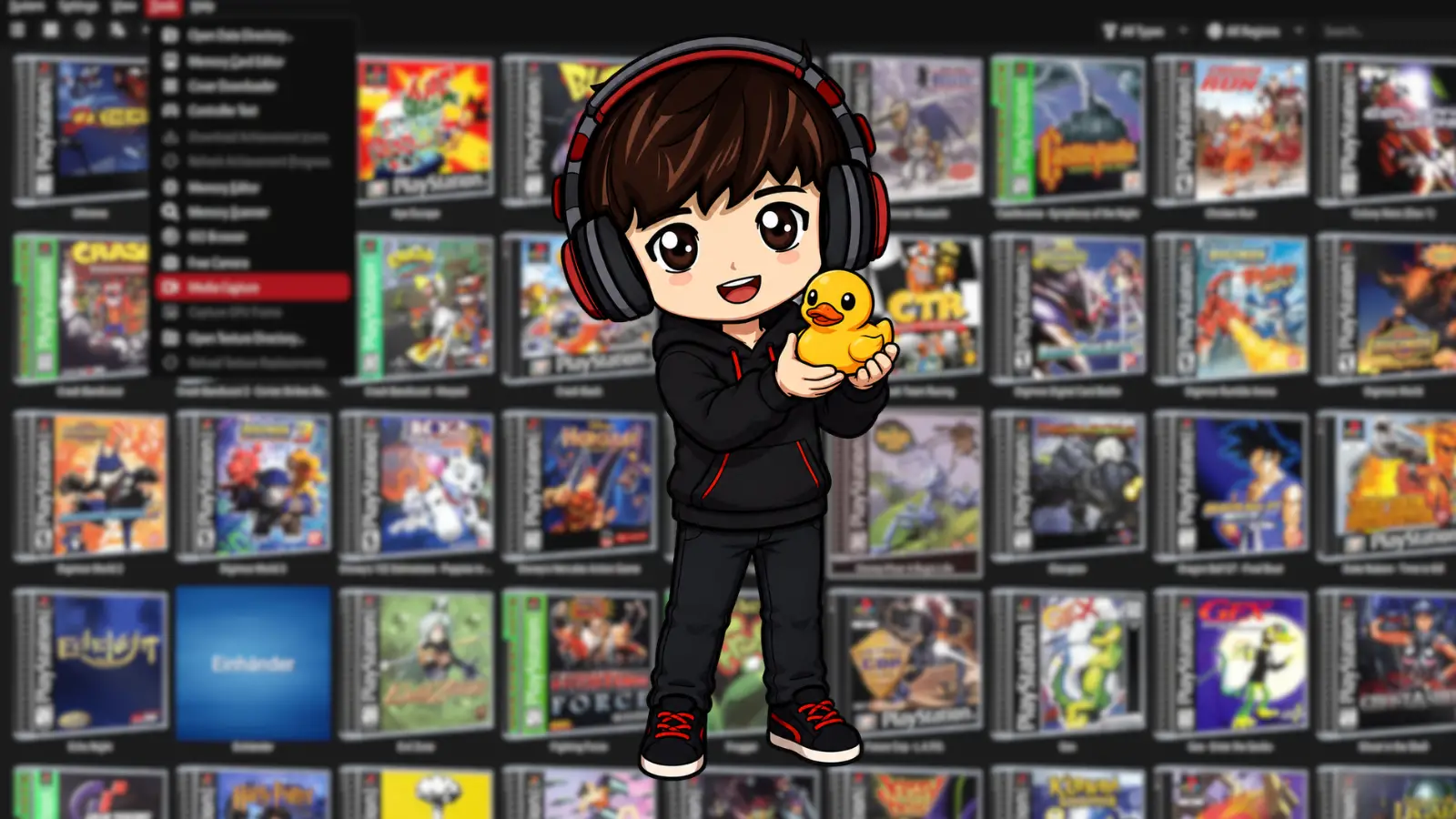
A plain text game list works, but DuckStation’s grid view becomes much easier to scan once every game has cover art. Current desktop builds include a Tools → Cover Downloader window.
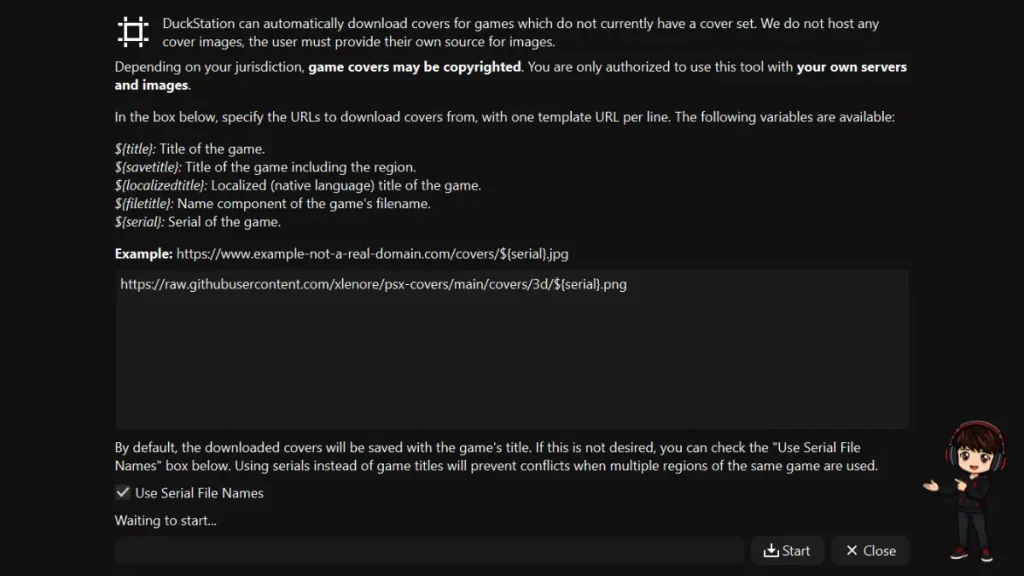
One community source I use is the xlenore PSX cover repository, which still documents DuckStation’s built-in downloader and serial-based templates.
https://raw.githubusercontent.com/xlenore/psx-covers/main/covers/default/${serial}.jpg
3D covers:
https://raw.githubusercontent.com/xlenore/psx-covers/main/covers/3d/${serial}.png
Use serial filenames when you have releases from multiple regions, because regional versions can share similar titles while their serials stay distinct. If a cover is still missing, DuckStation also supports manual images in its covers directory using a game title, filename, or serial. Then refresh the covers from the View menu.
4. Give Individual Games Their Own Settings
This is the feature that stopped me from constantly undoing my own settings. I might want Mega Man X4 at 4:3 with a CRT shader, while a fully 3D game gets higher internal resolution and a cleaner image. Per-game settings let both exist without touching the global configuration every time.
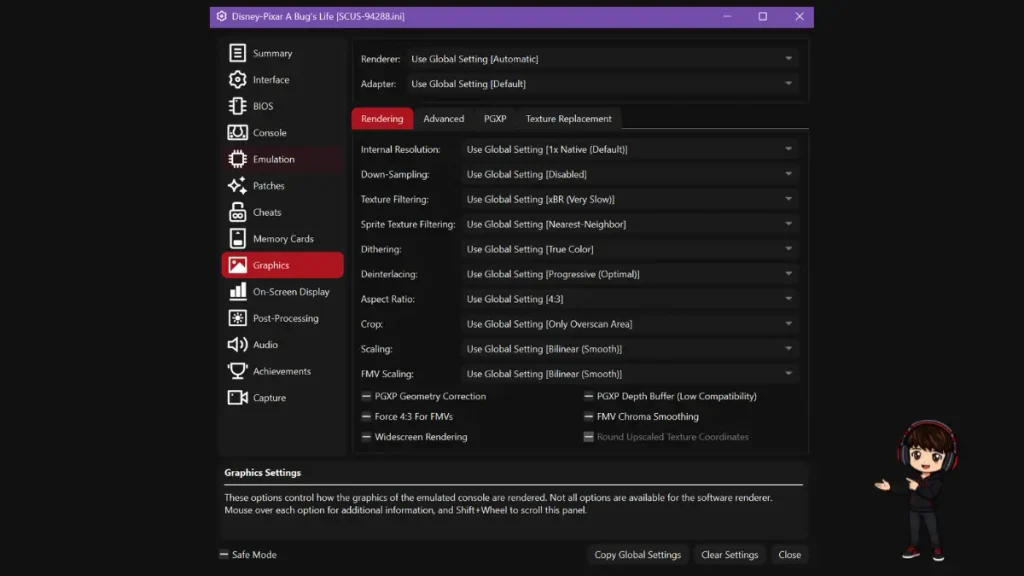
Open: right-click the game → Properties
Change: only the settings you want to override
Leave: Use Global Setting everywhere else
Per-game properties go beyond graphics. DuckStation exposes game-specific console, emulation, controller, memory-card, achievement, capture, patch, and cheat settings depending on the option.
Copy Global Settings deserves caution. DuckStation’s current code warns that it replaces the game’s configuration with the current global values. Those become explicit per-game values, so later global changes do not automatically replace them.
I keep my globals conservative and create small overrides only for games that need them. My DuckStation CRT shader ranking is a good example of something I would use per game, while my renderer guide covers the graphics-backend side.
5. Record Clean Gameplay Inside DuckStation
DuckStation has built-in media capture on desktop. I overlooked it for a long time because OBS was already part of my normal routine, but DuckStation’s own recorder is handy when I only want clean gameplay and game audio.
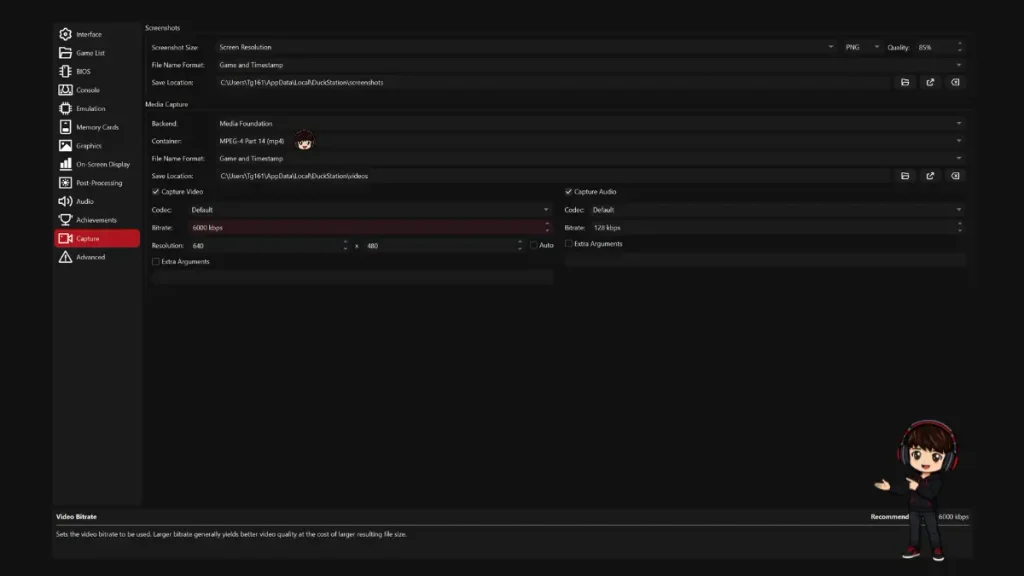
The current desktop UI has a dedicated Settings → Capture page for screenshots and media recording. You can choose the backend, container, save location, video and audio codecs, bitrates, and capture resolution.
Choose: container, codec, bitrate, save folder, resolution
Start/stop: Media Capture from the desktop controls or a capture hotkey
Optional: video-only or audio-only capture
The Auto resolution option follows the game’s current internal resolution. DuckStation specifically warns that automatic capture can become expensive when you are upscaling above 4x, so this is where I would stop treating Auto as free magic.
At modest internal resolutions, Auto is convenient. If you play at a very high scale, consider a fixed capture resolution instead of automatically recording the full internal render size. Record ten seconds, watch it back, and check both video and audio before committing to an hour of footage.
This is useful for clean B-roll because the capture is coming from the emulator rather than recording my entire desktop. I still use OBS when I need a microphone, overlays, webcam, multiple sources, or scene control.
DuckStation Hidden Features FAQ
Can DuckStation rewind games?
Yes. Enable Rewinding under Settings → Emulation, choose a save frequency and buffer size, then bind the Rewind hotkey. Rewind is unavailable while runahead is active and is blocked in RetroAchievements Hardcore Mode.
Is fast-forward allowed with RetroAchievements Hardcore Mode?
Yes. RetroAchievements explicitly allows fast-forward in Hardcore Mode. Rewind, slow motion, frame advance, cheats, and loading save states are restricted, but fast-forward is the exception.
Does DuckStation still have a cover downloader?
Yes on current desktop builds. Open Tools → Cover Downloader and provide a cover URL template. The xlenore PSX cover repository is one community source that documents serial-based DuckStation templates.
Can every PS1 game have different DuckStation settings?
Yes. Right-click a scanned game and open Properties. Any setting you override there applies to that game’s profile while untouched options continue using your global configuration.
Can DuckStation record gameplay without OBS?
Yes on desktop. DuckStation’s built-in Capture settings support video and audio recording with configurable container, codec, bitrate, save location, and resolution. OBS is still better when you need commentary, multiple sources, scenes, or streaming.
Which DuckStation Feature Should You Try First?
Start with rewind if you play platformers or anything punishing. It takes a few minutes to configure and changes how forgiving old games feel immediately.
If you play RPGs, fast-forward is next. For me, it saves more real time than any graphics setting ever will.
Cover art, per-game profiles, and Media Capture are the features I would add when your library or workflow actually asks for them.
The Short Version
Rewind first. Fast-forward second. Per-game settings once your library starts fighting itself.
The Cover Downloader makes the library nicer to use, and Media Capture is surprisingly useful when you need clean footage without firing up a whole recording setup.
DuckStation has grown far beyond the basic PS1 emulator I originally installed. The best features are the ones that get me out of its menus faster.
Related DuckStation Guides
DuckStation Setup Guide 2026 — the full Windows setup from download to first game.
Best DuckStation Settings for PS1 — rendering, PGXP, performance, post-processing, and troubleshooting.
Best DuckStation CRT Shaders — six filters tested on Digimon World and Mega Man X4.
Best DuckStation Renderer — when to use Automatic, Vulkan, Direct3D, OpenGL, or Software.
DuckStation Controller Setup — controller mapping and hotkeys.
Fix DuckStation Stuttering — performance troubleshooting if rewind or higher settings expose a bottleneck.
DuckStation Android Setup — the mobile version has a different interface and feature set.
Reference note: Feature behavior and menu availability were rechecked against DuckStation’s current official source on August 22, 2026. RetroAchievements Hardcore behavior was cross-checked against the current RetroAchievements rules and FAQ.